 What is a Fusion Zone? What does a Fusion Zone do?
As Crestron Studio® teams up with Crestron Fusion® to provide Fusion monitoring, management, and reporting of device and room usage, locations in Crestron Studio® are outfitted with a Fusion zone subsystem which provides automatic programming during program generation. A Fusion zone enabled room supports up to 8 sources and up to 4 media displays.
What is a Fusion Zone? What does a Fusion Zone do?
 A Fusion zone is essentially a logic device automatically added to the
system project by Crestron Studio®
which allows devices in the room to connect to the Fusion Server without
the need of providing user-created programming.
A Fusion zone is essentially a logic device automatically added to the
system project by Crestron Studio®
which allows devices in the room to connect to the Fusion Server without
the need of providing user-created programming.
Why would I want to use Fusion Zone?
Do you need to monitor, manage and maintain audio, video, lighting and
security systems that are spread across different buildings, cities, countries
without creating custom programming? Do you require tracking of room and
equipment usage including projector lamp hours, volume levels, and whether
systems are on/off? Do you need to provide real-time remote assistance
to help requests? If the answer is yes, Fusion Zone(s) is exactly what
you your system needs.
Can a Fusion Zone be used with multiple rooms in a project? What if I
have several rooms equipped with identical devices?
You'll be expected to enable a Fusion zone for each room in your system
that has devices that you'd want to track in Crestron Fusion®.
However, if you happen to have multiple rooms which use the same equipment, for example several Conference rooms, you don't need to create multiple copies for each Conference room in your building.
Just do the following:
In Crestron Studio®:
Create new system
Add the devices to one Fusion enabled room (for example, 'Conference Room'), create source routes, generate and compile your program.
Upload the program to each control processor.
In Crestron Fusion®:
Discover the room for each control processor.
Crestron Fusion®
will add one copy of the room for each control processor.
Rename each room. For example, 'Conference Room 1', 'Conference
Room 2', etc.
The room name will be updated by the Fusion server and reflected in
the touch screen template pages.
Which devices 'work' with a Fusion zone?
The following devices can be monitored in Crestron Fusion®:
All Crestron devices that support the device extenders 'Ethernet Offline Manager' or 'Cresnet Poll Manager'
Media sources
Displays
Occupancy sensors
How to enable a Fusion Zone
A
Fusion Zone enabled location (also called Fusion room) is identified by
the Fusion Zone indicator  . The
Fusion zone is enabled automatically for each location in a presentation
system. Additionally, the Fusion Zone can be enabled and disabled
manually for locations in presentation or home systems.
. The
Fusion zone is enabled automatically for each location in a presentation
system. Additionally, the Fusion Zone can be enabled and disabled
manually for locations in presentation or home systems.
To enable a location as a Fusion Zone manually:
Select the desired location in the System Tree.
Click on the Fusion icon on the right to "light up"
the Fusion Zone indicator.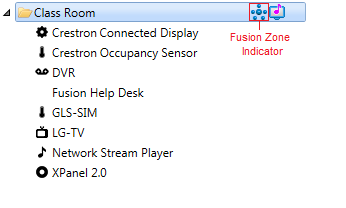
Alternatively, select the Fusion
Zone check box in the Properties Grid for the selected location: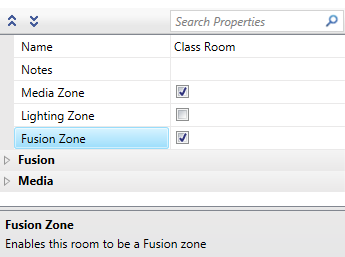
If needed, adjust the Fusion Zone properties for your location.
To disable the Fusion Zone for a selected location:
Note that when a location is disabled as a Fusion Zone, Crestron Studio® removes any automatically added Fusion Zone assets and any custom programming targeting the devices.
When a location is enabled as a Fusion
Zone, Crestron Studio®
automatically adds a Fusion Room logic device to the system project. The
Fusion Room logic device is not displayed in the System Tree, however
it can be observed in the Device Explorer in Program Designer. Each Fusion
Room logic device takes the next available IP ID.
NOTE:User-added
Fusion symbols are visible in the System Tree of the project. When
user-added Fusion symbol assets are added to a location enabled as a Fusion Zone they are automatically
wired to the Fusion Room logic device.
Is it OK to rename a Fusion zone/room in Crestron Studio®
or Crestron Fusion®?
Yes, Fusion zones/rooms can be renamed.
However, keep in mind that changing the name of a Fusion Zone (or manually added Fusion Room) in Crestron Studio® after the room has already been discovered in Crestron Fusion®, will not be reflected in a consecutive rebuilding/uploading of the program or rediscovering the room in Crestron Fusion®. To update the room name in Crestron Fusion®, first delete the room in question on the Crestron Fusion® side and repeat the Symbol discovery process.
Note: When deleting a room make sure to remove the processor associated with that room as well.
Can I monitor and control devices in Crestron Fusion®
in real time?
Crestron recommends adding XPanel 2.0 Smart Graphics (Web) to your Crestron Studio® system and
then using Crestron Fusion®'s
e-Control functionality.
Additionally, when a location is enabled as a Fusion Zone, information about the following is sent to Crestron Fusion® attributes for monitoring and/or control:
All Crestron devices that support the device extenders “Ethernet Offline manager”/“Cresnet Poll Manager” will be monitored for offline/online status - Offline Status.
Room
Room Name
System On/Off status & control
Volume/mute status & control
For all displays in the room:
Display On/Off status & control
Lamp Hours Reporting (for projectors that have Lamp Hours reporting capabilities)
Device Usage - Provides information about the inputs usage which allows easy tracking/reporting (via Crestron Fusion® reports) about how much each input is used in a room.
Occupancy - Occupancy status is reported to Crestron Fusion® automatically when an occupancy sensor is added to a Fusion zone
More:
Devices in a Fusion Zone. Adding, Deleting, Moving, Replacing Devices
Devices that need special consideration