
 :
:and click Edit on the tool bar.

In the Edit - Room window,
select the Room Details tab: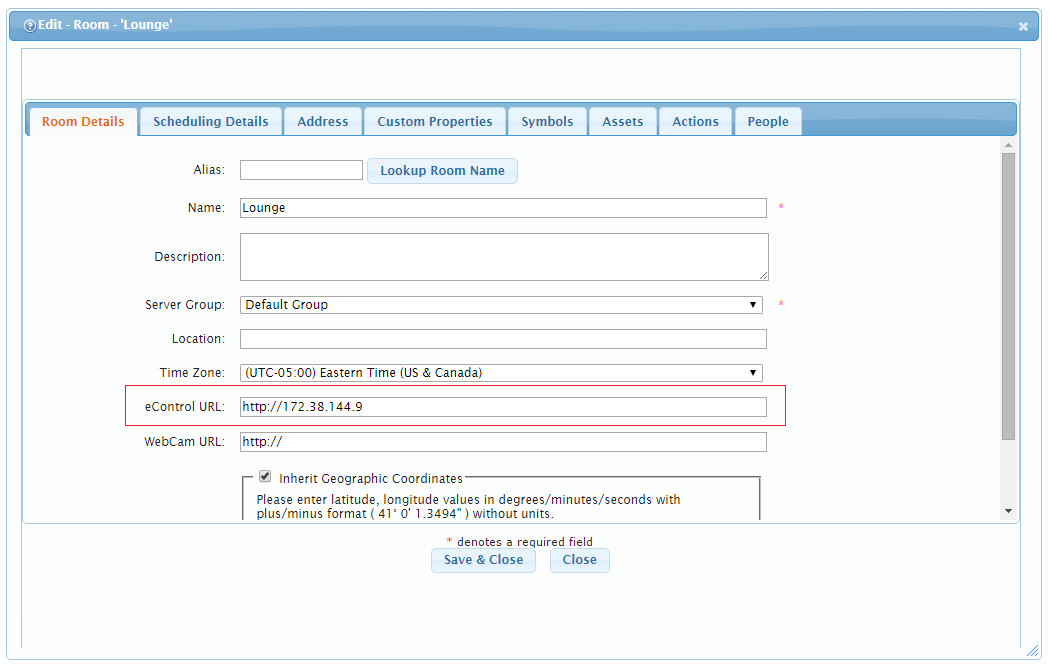
Make sure to type the IP address of the control system in the eControl URL text field.
The e-Control functionality in Crestron Fusion® allows monitoring and control of devices in real time by using XPanel 2.0 Smart Graphics (Web).
To do so:
:In the Edit - Room window,
select the Room Details tab:
Make sure to type the IP address of the control system in the eControl URL text field.
To see the XPanel 2.0 Smart Graphics (Web) in Crestron Fusion®:
Navigate to the RoomView® Monitoring
area of Crestron Fusion®
by clicking Open on the Fusion Header Tab
and selecting RoomView® Monitoring
Select a room or a node to monitor in the Room Tree pane on the left.
Click on the e-Control
tab in the pane on the right.
The XPanel 2.0 Smart Graphics (Web) for that room is displayed in the
e-Control tab.