Files
Comprising a System in Crestron Studio®
Where are the Files Comprising
My System Located?
Crestron Studio®
observes Microsoft® conventions for file locations, including
UAC settings.
Crestron Studio®
is also based on SQL databases, rather than home-grown or personal database
technology. Therefore files are stored within SQL, and are only available
as external files when specifically exported.
The
easiest way to browse to the files comprising your system in Microsoft®
Windows® 7 is to:
Open Windows
Explorer and browse to the Libraries
folder
Find and open the Crestron
folder
Select the location where
your system was created. The Crestron
library provides the following 2 default locations: Projects
and Public Projects; it can
also contain any custom
locations/folders you have added to it.
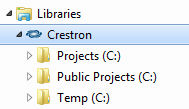
In the
chosen location, select and open the Systems
folder which contains a dedicated folder for each of your system projects,
stored by name. Keep in mind that any folder or file beginning with
a “~” denotes a temporary file location.
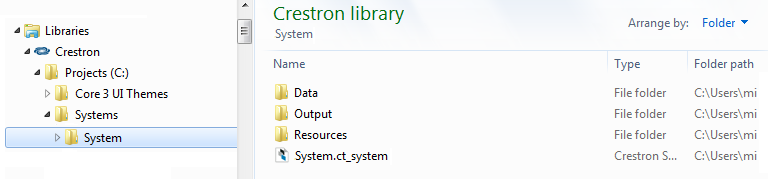
Each System project folder contains additional subfolders where Crestron Studio® saves various
files pertinent to the particular system project.
You
may delete a system by deleting its folder but remember to do this only
when Crestron Studio®
is not running!
Please
do not use a common file archiver software to create archives of your
systems (for safe-keeping or sharing with co-workers) but use the Crestron Studio®'s
Import/Export
process instead.
More:
Creating
a Backup Copy of Your System
Collaborating on a System
Importing SIMPL Programs
Adding a folder
to your Crestron Library