Importing SIMPL Programs
To make the process of importing
your SIMPL programs
into Crestron Studio®
smoother, make sure that you follow the rules outlined below:
Use
the most recent available versions of SIMPL and the Device Database.
If
using any beta devices in your SIMPL program, you must have the corresponding
beta package for Crestron Studio®. Note
that unsupported devices (older devices that have been discontinued
for 5 years or more, for example, X-Generation or earlier control
systems) will cause messages to be logged during the import operation
but will generally cause no other problems.
Exporting files from SIMPL to Crestron Studio®:
Create/Open your program in SIMPL
If the SIMPL program opens without warnings
or errors, save and use the 'Recompile All' functionality (this will
force a recompile of all SIMPL+ modules) compile the SIMPL program.
If errors are reported, check if any of the devices or symbols with
errors might be Beta or Test versions. If so, try to replace any of
the test or beta devices with released versions if possible.
Save a copy of the SIMPL Help -> About
information in case it's needed to reference data files used
Archive your SIMPL program by using the
'Create Archive' functionality of SIMPL, to ensure that all user macros
and user IR files are included.
IMPORTANT: Make sure that all
files are placed at top level of the archive for the import to be
successful. If necessary, extract the files and create a new archive
where the files are placed at the top level.
Importing SIMPL programs in Crestron Studio®:
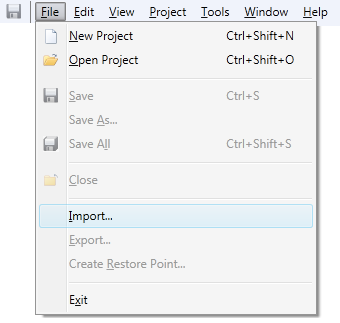
Click Import...
on the File menu
The Import
Files Dialog opens
Navigate to the SIMPL Archive (.zip)
file you wish to import. Although importing
a plain SIMPL program (.smw) file is permitted, it is strongly discouraged
because you may be missing macros and/or .ir files. You can also separately
import macros and IR files, but they WILL NOT link up by name to your
program as they do in SIMPL. You will have to go
to Programming Designer and add
them to your program explicitly.
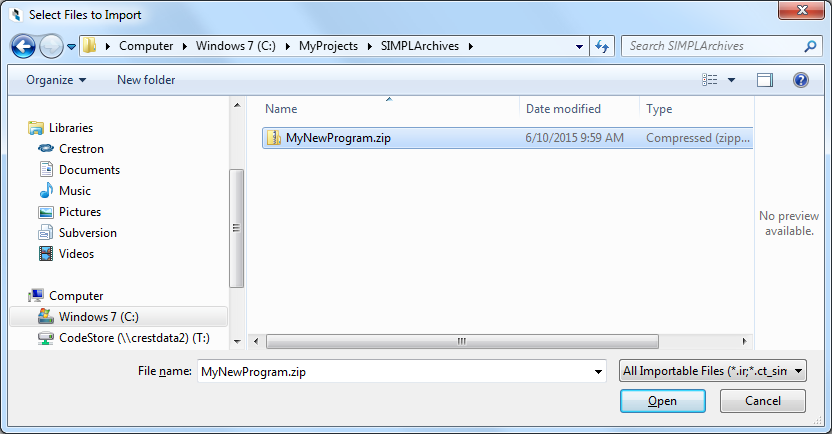
To locate the desired file you may need to:
Access a different folder, library
or device
Change the file view type to Thumbnails,
Tiles, Icons, List or Details
List the File Name that can be
selected
Filter the extensions of the displayed
files
Click Open
to import the selected SIMPL Archive file.
The
File Import Assistant dialog
opens where you could specify the Import
Location
and Import Action:

The only available import location for the SIMPL program is Project,
however you can specify different Import Locations and Actions for
the user modules included in the SIMPL Archive.
Choose
Central import location if you wish to import the modules
to the “Central Crestron Studio®
database”, thus making the modules available for use in any system.
Alternatively, use the default Project
location
to import the modules to the current system/project only. Project
modules would not be available for use in any other systems/projects,
except the current one.
IMPORTANT: Changing any module's
import location will force all other modules in the dialog to be changed
to the same import location.
Click Next.
The import process starts.
Note: This process
may be quite slow so, please, be patient!
Import results
are displayed for the main SIMPL Program and any user modules included
in the archive:
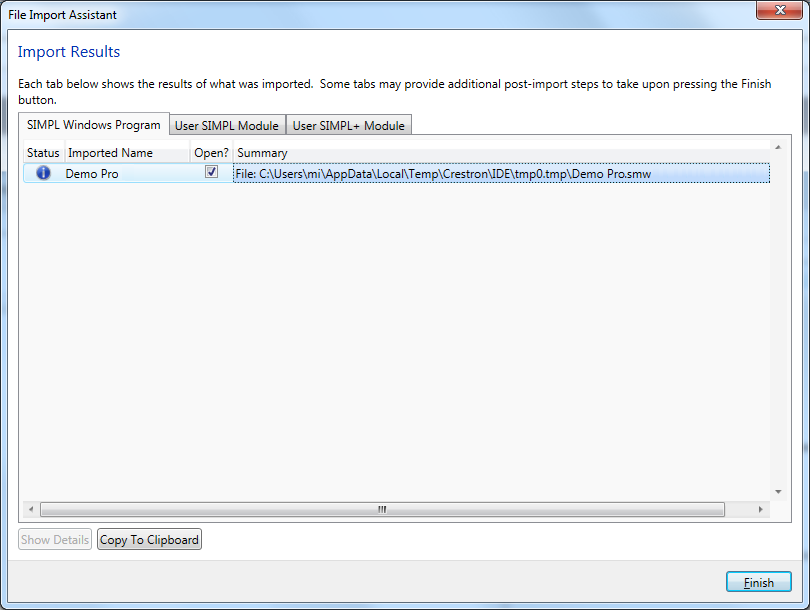
Click Finish