Adding
a folder to your Crestron Library
To include a folder in your Crestron Library do
the following:
Click
the Windows Explorer button
 (in the Windows taskbar)
to open Windows Explorer.
(in the Windows taskbar)
to open Windows Explorer.
Navigate
to the folder that you wish to include in your Crestron library and
single-click it (don't double-click) to select it.
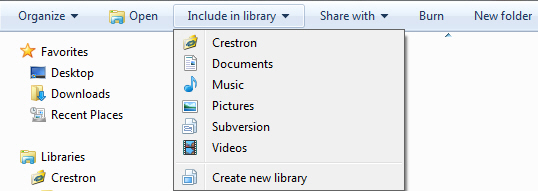
Click Include
in library (in the toolbar
above the file list), and then choose Crestron
-OR-
Click
the Windows Explorer button
(in the Windows taskbar)
to open Windows Explorer.
Navigate
to Libraries in the navigation
(left) pane of Windows Explorer,
and click Crestron.
The
contents of Crestron library
is displayed in the right pane of the Windows
Explorer.
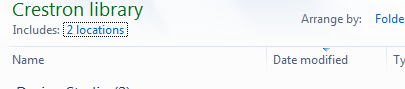
Click
locations (just below Crestron
library):
The
Crestron Library Locations
dialog opens:
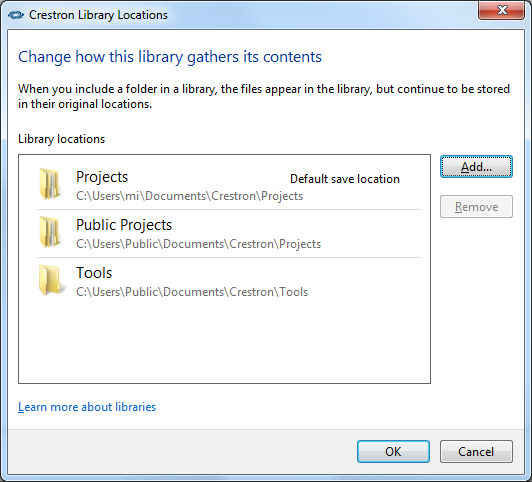
Click
Add....
In
the dialog that opens, navigate to the folder that you want to include
and click to select it.
Click
Include Folder.
-OR-
Click
the Windows Explorer button
(in the Windows taskbar)
to open Windows Explorer.
In
the navigation pane on the left, navigate to Libraries
and click on it.
All
libraries on your machine are displayed in the right pane of the Windows Explorer.
Right
click on Crestron library
and choose Properties:

In
the Crestron Properties dialog,
click Include a folder...
button:

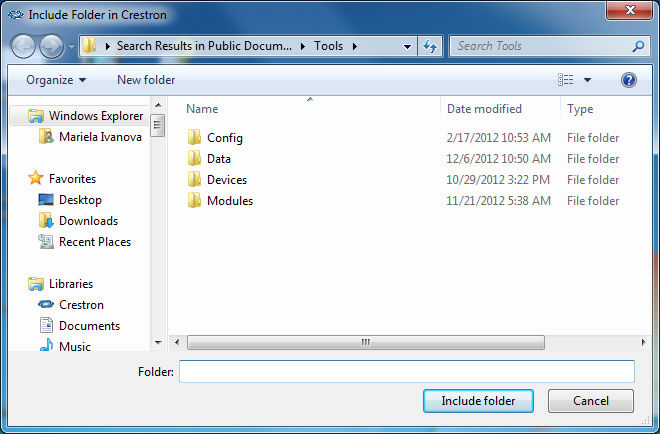
Include folder in Crestron dialog
opens:
In
the Include folder in Crestron
dialog navigate to the folder you wish to include, select it and press
the Include Folder button.
You
can include folders in a library from many different locations, such as
your computer's C drive, an external hard drive, or a network.
NOTE:
if you wish to work with a network folder which is part of your Crestron
library, you have to make
it available offline first!
Remember
that while this method will allow you to start Crestron Studio®
if a network drive is a part of Crestron Library, creating
a project on the network drive is not supported at this time!
Folders
from removable media devices (such as CDs and DVDs) and some USB flash
drives can't be included in a library. For more information on which folders
can be included in your Crestron library refer to the table below:
Where is the folder stored? |
Can
it be included in Crestron library? |
On your C drive |
Yes. |
On an external
hard drive |
Yes, but the content
won't be available if the drive is disconnected. |
On an additional
hard disk inside your computer |
Yes. |
On removable
media (such as a CD or DVD) |
No. |
On a USB flash
drive |
Depends on the USB
flash drive. In general a USB device can be included in a library
if it appears as "Fixed" in the Hard Disk Drives section.
This is set by the device manufacturer, and can be changed in
some cases. Contact the manufacturer for more information. |
On a network |
Only if the location
is indexed, or the file/folder
has been made available offline. |