Crestron Studio® allows two or more developers to create a touch screen design in Crestron Studio® and work on the same touch screen design. Note that the developers do not have a concurrent access to the same touch screen project at the same time but rather work in a succession. In Crestron Studio® this kind of joint effort is called collaboration.
Please keep in mind that collaboration on touch screen designs created in VT Pro-e® is NOT supported!
To start working on a "collaborative" system:
Import a touch screen project by using the Import a Touch Screen Design Created in Crestron Studio® functionality of Crestron Studio®. Note that the type of panel that's being imported doesn't have to match the existing type/model of touch screen.
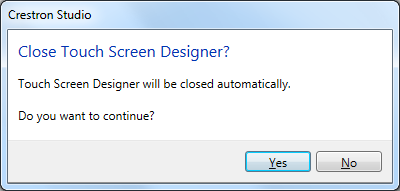
Be aware that Crestron Studio® will need to close any open Touch Screen Designer tabs before attempting to import the design. If an instance of Touch Screen Designer is still open when trying to import a design, Crestron Studio® will prompt you with the following dialog:
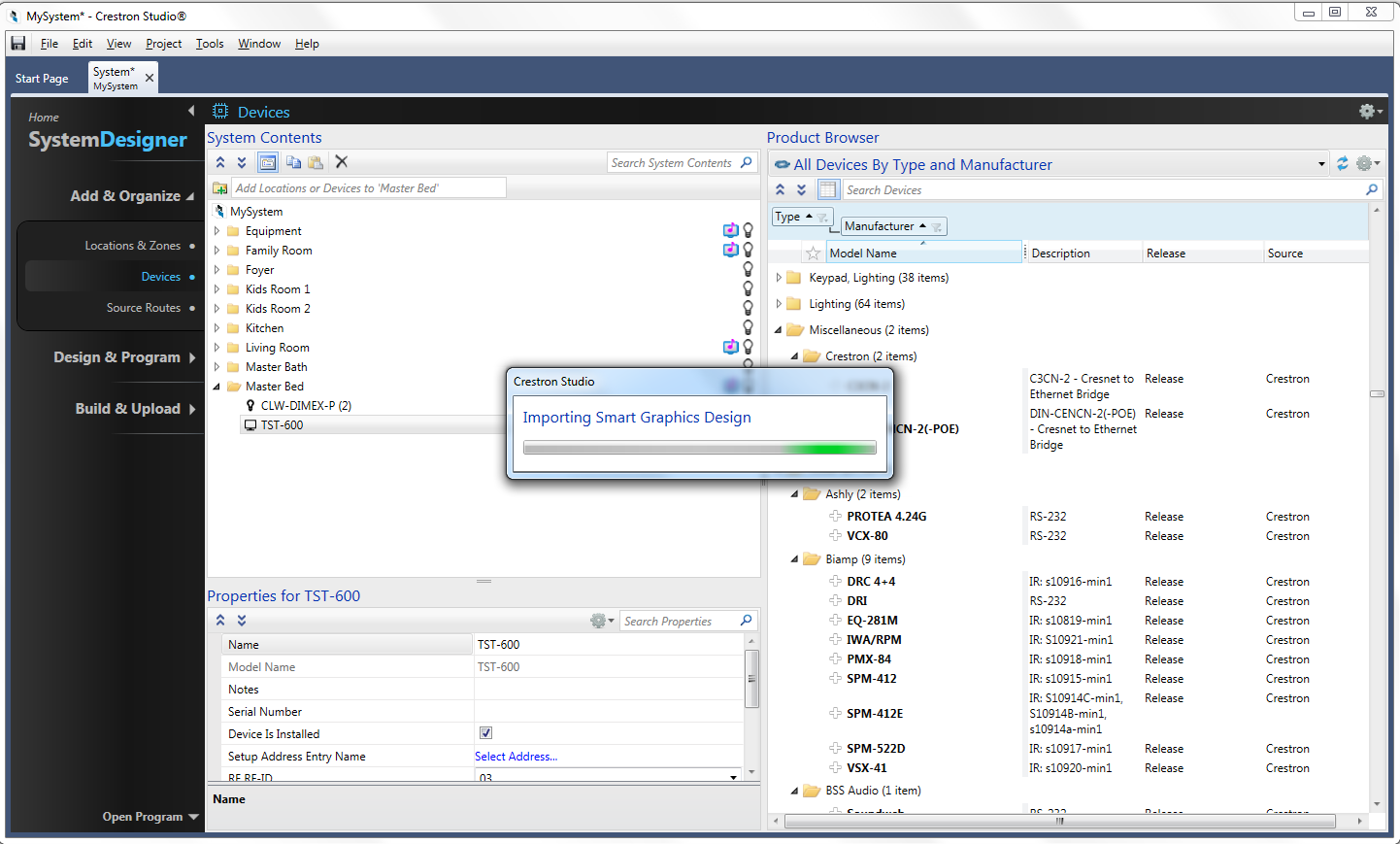
At import, the imported and the existing design are compared against each other. If there is a mismatch between controls and join number, the Crestron Studio® will notify you that a new page labeled ControlsWithOrphanedJoinSignals page will be created and any mismatched controls moved to it.
Example of a ControlsWithOrphanedJoinSignals page:
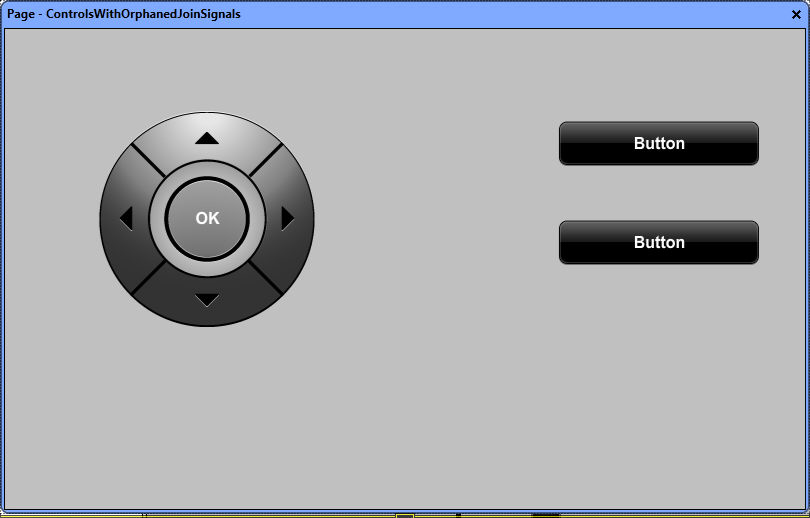
Controls that have Simple Joins:
Note: When analyzing the imported and existing designs only join types and join number are compared.
Result of comparison |
Action |
Join numbers match |
Imported object overwrites the existing one |
Join number don't match |
Objects are moved to the ControlsWithOrphanedJoinSignals page |
Smart Objects:
Note: When analyzing the imported and existing designs the Smart Object types and Smart Object join number are compared.
Result of comparison |
Action |
Smart objects and their join numbers match in both existing and imported design |
No action. Imported object overwrites the existing one |
Different types of Smart Objects have the same join number |
Smart Object (and its programming) from the existing design is moved to the ControlsWithOrphanedJoinSignals page Smart Object from the imported design is added to the corresponding page of the touch screen design |
Smart object is new to the existing design |
Smart Object is added to the corresponding page of the touch screen design |
Smart object from the existing design doesn't exist in the imported design |
Smart Object (and its programming) is moved to the ControlsWithOrphanedJoinSignals page |
More: