Restore Points
A restore point is a full export of your project (includes export of
the system project and all touch-screen and/or Faceplate designs, if any)
that is created manually (on demand) or automatically (on a timed and/or
event basis), with the intention of preventing data loss and for the purpose
of providing a backup and/or alternate versions of the project. Restore
points are used to restore your project's files to their state in an earlier
point in time, i.e. they provide a form of "undo" for the project.
The following restore points are available in Crestron Studio®:
On Demand: Restore Point
is created manually.
By Event: Restore Point
is created automatically by Crestron Studio® when
a specific event occurs. At this time, only a build or compile events
are supported.
By Time and Idle Threshold:
Restore Point is created automatically by Crestron Studio® when
a timer expires AND after the system has been idle for at least ‘x’
minutes, as long as at least the specified time since the last restore
point creation or project save has already elapsed.
By default, restore point files are saved in the \Backups subfolder
of the System
project folder. You can also specify a custom location where the restore
point files will be saved by defining the desired path in the Override Save Location field in
Crestron Studio®
Options by clicking on the Browse
button and selecting new location.
Pressing the Clear button will
remove any previously defined custom location and the default save location
will be used.
Additionally, you can also set the maximum number of restore point files
that Crestron Studio®
will
save per project by typing a number in the Max
Restore Points field in Crestron Studio® Options.
Valid values for maximum restore point files range from 0 (signifies that
there is no limit on created restore point files) to 10. By default the
number of maximum restore point files is set to 5. If the number of restore
point files exceed the max value specified in
the Max
Restore Points field, the
oldest one (by version) will be deleted. To keep a particular restore
point from being deleted you have to rename it manually, move it to a
different folder or set Max Restore Points
=0.
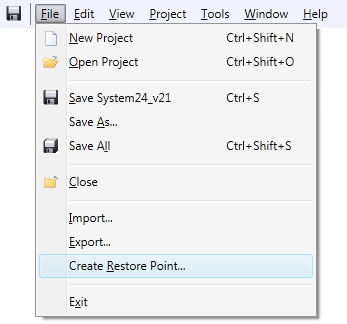
To create a restore point on demand (manually):
Click on File and choose
Create Restore Point... from
the menu.
Create Restore Point Dialog
opens:
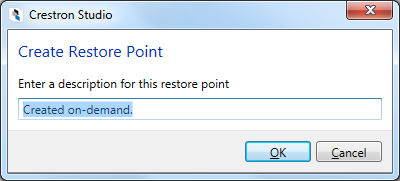
(optional) Type a description
for the restore point, for example: "After
importing touch screen design to TSW-750". Any description
you enter will be displayed in the 'Restore Unsaved Project' dialog
on startup of Crestron Studio®
after an application crash.
Click OK.
Note: Once initiated, a restore
point cannot be cancelled.
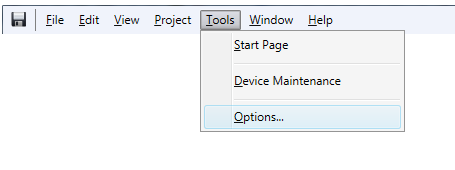
To create a restore point automatically:
Click
on Tools and choose Options... from the menu.
In
the left pane of Crestron Studio®
Options Dialog select Projects/Restore Points:
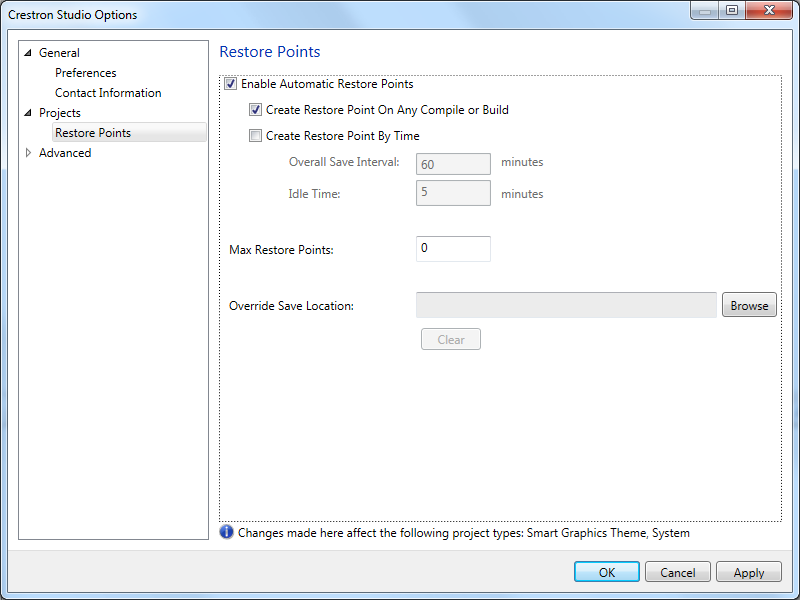
Adjust
the options to set restore points by
time or on
any compile or build, as needed.
Click
OK.
NOTE: For an automatic restore
point to be created, there should have been changes in the system since
the last save or restore point operation.
By default restore point files are saved in the \Backups subfolder of
your System
project folder, for example "\Users\user_name\Documents\Crestron\Projects\Systems\MySystem\Backups".
The name of the restore point file is the same as the name of the project
with the “_v<number>” appended (where <number> is an integer
signifying increasing version number), and the extension .ct_system_rp.
For example, MySystem_v7.ct_system_rp.
A restore point file can be used to restore your project's files to
a state in an earlier point in time or as a data backup after application
crash:
On demand - by importing the restore file at any time as you
would import any exported Crestron Studio® System
file. For more information refer to Import
a Restore Point File into Crestron Studio®.
After application crash - On
startup Crestron Studio®
will issue a notification if there are restore points available
for new projects that were never saved.

If you choose not to restore the project, the restore point will be
deleted and you will lose all data for the project.
More:
Create
Restore Point by Time
Create
Restore Point On Compile or Build
Restore a Project
Import
a Restore Point File into Crestron Studio®
Backup Solutions in Crestron Studio®