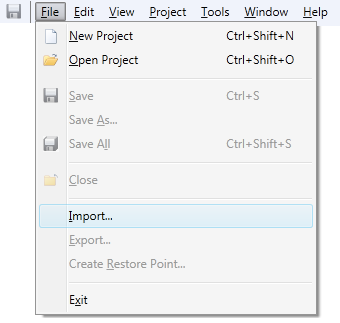
Click Import...
on the File menu
The Select Files to Import Dialog opens
Navigate to the Restore point file (.ct_system_rp) you wish to import. To locate the desired file you may need to:
Crestron Studio® allows you to import and open any saved restore point files for your system project, as you would a regular archived System project file.
To import a Crestron Studio® Restore Point follow the steps outlined below:
Click Import...
on the File menu
The Select Files to Import Dialog opens
Navigate to the Restore point file (.ct_system_rp) you wish to import. To locate the desired file you may need to:
Access a different folder, library or device. Note that by default restore point files are saved in the \Backup subfolder of your system project folder.
Change the file view type to Thumbnails, Tiles, Icons, List or Details
List the full or partial File Name that can be selected
Filter
the displayed files by extension: 
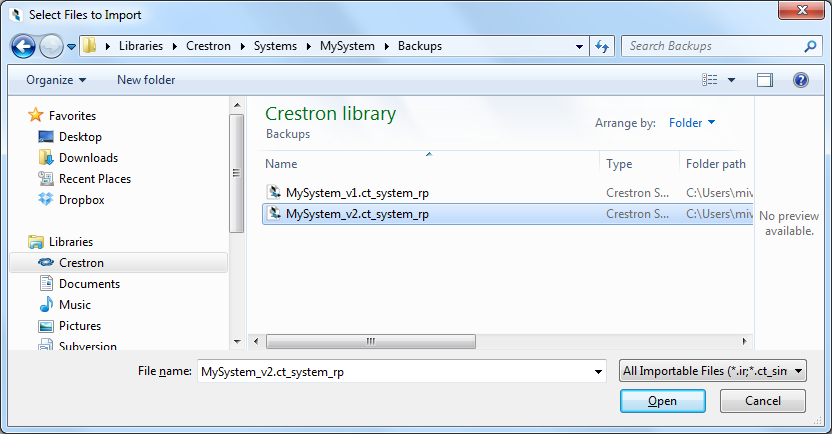
Click Open to import the selected Restore point file.
(optional) After successful restore point import, rename the system project (to a name which does not include a versioning number), for example: MySystem_Restored.