The Start
Page displays information about existing projects by project type
and provides means to open, rename or delete projects, start new projects,
switch to open projects, and view Crestron Electronics, Inc news and press
releases.
To browse projects by type, at the upper left corner of the
Start Page, click on the list box's drop-down arrow and then click
on the project type: Systems, Devices,
SIMPL Modules, SIMPL+®
Modules, and Smart Graphics™.
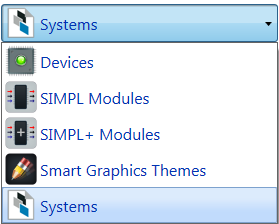
The corresponding projects are listed directly below, in the Recent project tree.
To create, open or delete Projects
To create a new Project, click on the New
button on the menu bar or press 


 .
In the New Project dialog,
choose a project type, a control processor, project name, file location
and then click the New button.
.
In the New Project dialog,
choose a project type, a control processor, project name, file location
and then click the New button.
To open a Project,
select the project, and then click the Open
button on the menu bar
-or-
Double-click on the project's name.
The project opens in a separate Crestron Studio®
tab.
To delete a Project, select the project, and then click the Delete button on the menu bar. In the Delete System? dialog box, click the Yes button.
To sort and group Projects
To view all available Projects
by type, click on the Projects
tab:
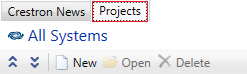
and then click on the  drop-down list to select the type of project which will be displayed.
The following types of projects are available: Systems,
User SIMPL Modules, User SIMPL+ Modules, Smart Graphics™
Themes and Devices.
drop-down list to select the type of project which will be displayed.
The following types of projects are available: Systems,
User SIMPL Modules, User SIMPL+ Modules, Smart Graphics™
Themes and Devices.
To sort the listed projects, click on either the Name or Description column headers to re-sort the projects accordingly.
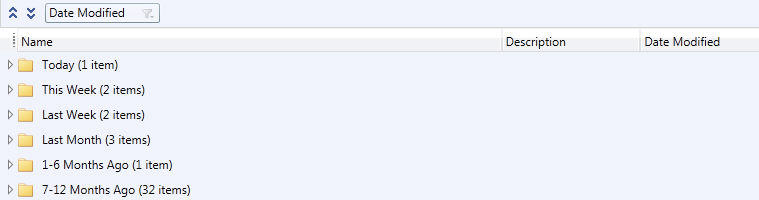
To change the sort order, drag a column heading to Sorting bar:

and drop it in the  placeholder.
You can also double-click on the column heading to re-sort based
on that column. For example, dragging Date
modified to the Sorting bar and then double-clicking on its
column heading specifies that the date folders will be sorted in descending
order.
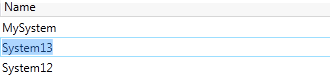
To rename a project and enter a project description
To rename a project,
click on the project name, press  and type the new name -OR-
right-click on the project name, select Rename
from the pop-up menu, and type the new name.
and type the new name -OR-
right-click on the project name, select Rename
from the pop-up menu, and type the new name.
To enter a project description,
click on project name, move the mouse cursor to the Description
column, right-click on it and select Edit
Description from the pop-up menu or press .
Then type the
project description.

To change Start Page display options
To close the Start Page after
a project loads, select the Close
this page after a project loads check box located in the bottom
left corner of the Start Page

To show the Start Page at Crestron Studio® startup, select the Show this page on startup check box.
To view Crestron Electronics Inc. news and press releases
To view news and press releases, click the Crestron
News tab  .
.
Click on the title of a news item in the list box. This launches the default internet browser and opens the news item in a separate window.