Device Information
Accessing Device Functions
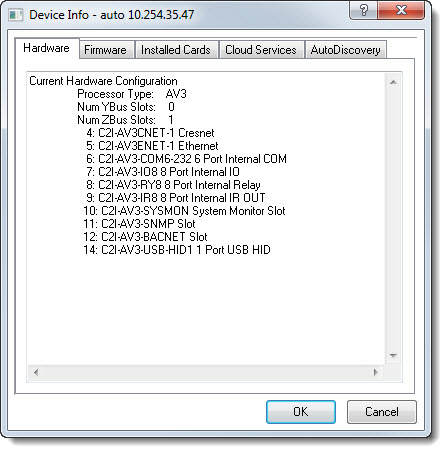
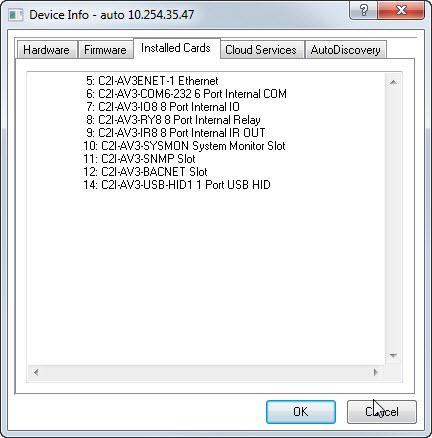
Use this function to view information about the device hardware, firmware capabilities and installed cards. This information can be used for diagnostics, or sent to Crestron technical support if requested.
In addition, the Device Information function also allows you to enable Cloud Services and AutoDiscovery.
Hardware Tab
Firmware Tab

Installed Cards
Cloud Services Tab
The Cloud Services tab allows you to enable/disable Crestron-based cloud services that the device supports:
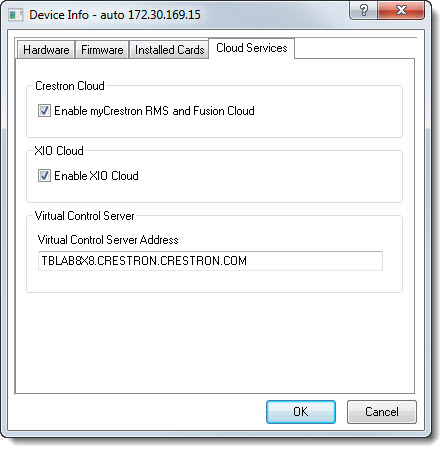
- In the Crestron Cloud group box, select the Enable myCrestron RMS and Fusion Cloud check box accordingly to enable or disable a Cloud Connection to Crestron's MyCrestron
Monitoring Service.
- In the XIO Cloud group box, select the Enable XIO Cloud check box accordingly to enable or disable a Cloud Connection to Crestron's XIO Cloud, cloud-based device provisioning and management service at portal.crestron.io.
- In the Virtual Control Server group box, enter the Virtual Control Server's address in the Virtual Control Server Address text field; the Virtual Control Server Address can be an IP Address, Hostname or Fully Qualified Domain Name (FQDN).
For example:
- IP Address: 192.168.1.10
- Hostname: VirtualControlServer
- Fully Qualified Domain Name (FQDN): TBLAB8X8.CRESTRON.CRESTRON.COM
You can use standard Windows commands (e.g., right-click submenu, or Ctrl+C and Ctrl+V) to select text, and copy and paste text to a file.
AutoDiscovery Tab
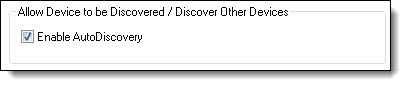
The AutoDiscovery Tab enables the device to be discovered and to discover other devices:
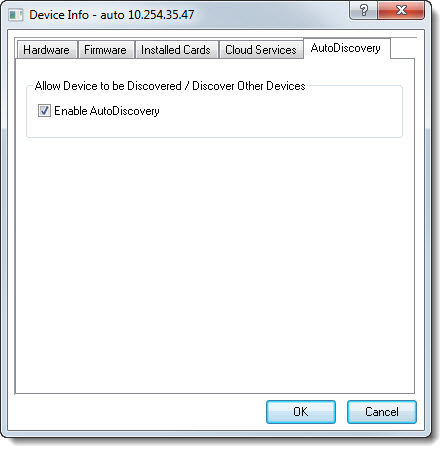
- In the Allow Device to be Discovered / Discover Other Devices group box, select the Enable AutoDiscovery checkbox and click the OK button: