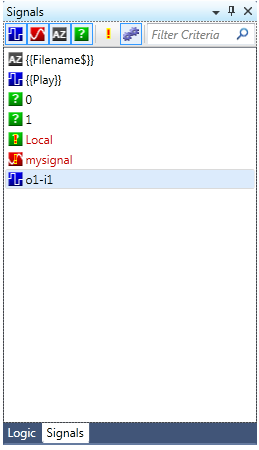
Signal Explorer is a tool window which shows a list of all signals in your program and allows you to quickly find signals you've defined in it.
Different signal types can quickly be identified in the signals list of the Signal Explorer by the icon preceding the signal name:
 - Digital Signal
 - Analog Signal
 - Serial Signal
 -Ambiguous Signal
Note that incomplete signals are marked by an exclamation point icon  denoting that the signal is missing either a driving source, or a destination.
Use the toolbar of the Signal Explorer to sort the signals by type and to filter out and display ambiguous, user-defined, incomplete signals.
|
Icons |
Purpose |
|
|
Display digital signals. |
|
|
Display analog signals. |
|
|
Display serial signals. |
|
|
Display ambiguous signals. |
|
|
Display incomplete signals. |
|
|
Display user-defined signals. |
To display signals by type:
When one or more signal type icons (Show Digitals  , Analogs
  , Serials
  and/or Show Ambiguous
  ) are selected in the Signal Explorer toolbar, the corresponding type(s) of signals are displayed in the signal list. Note that clicking on a signal type icon for a second time, deselects the icon and hides that type of signals from the signals list.
Clicking on a signal type icon (for example, Show Digitals ) while pressing on the  key (
key ( 'Mouse Click'), will deselect every other signal type and hide all other types of signals from the signal list, making this a quick way to show only the signals of the one type you selected.
Second 'Mouse Click' - selects ALL signal type icons  , thus displaying signals of all selected (digital, analog, serial, ambiguous) types in the signals list.
Note that the signal list will always display at least one type of signals. Trying to de-select the selected signal type icon will turn on ALL signal type icons!
Some additional filtering of the signal list can be achieved by toggling on/off the icons for incomplete  ,
,  , signals.
Signals in the signal list are displayed in alphabetical order, beginning with any optional signals, and then active signals.
To find and display all signals containing the search term type the search term in the  text field and click
  . The search term can be the complete signal name or part of the signal name and is not case-sensitive.
To view or rename signals
To view the driving sources and signal routing of any signal in the list, double-click on it or select it and choose Open Signal from the right-click menu.
You can also right-click on a signal and rename it globally (by selecting Rename Signal Globally..., or pressing  ), meaning that the signal will be renamed everywhere it's used.
More: