 , or select Trace Routing from the right-click menu: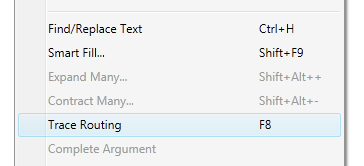
Crestron Studio® allows you to quickly see the driving sources and routings for any signal in your program.
To show signal routings:
Select the signal in a Symbol Editor or the Signal Explorer and press , or select Trace Routing from the right-click menu:
The signal opens in a new Signal Editor.
The title bar of the Signal Editor displays the name of the signal preceded by an icon identifying if the signal is incomplete signal and the signal's type.
If the signal is an output, it will be listed in the (Driving) Sources list; if an input, in the Destinations list. The two lists will also include any other inputs or outputs associated with the selected signal: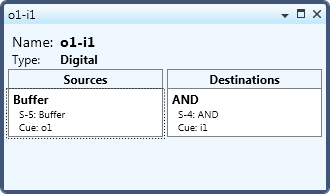
Each list displays the following information about the signal: name of the symbol in which the signal is used, symbol location, and signal cue.
To find more routings
Double-click the signal, or select the signal and press , or choose Trace Routing from the right-click menu. This will open a new Symbol Editor and highlight the selected signal: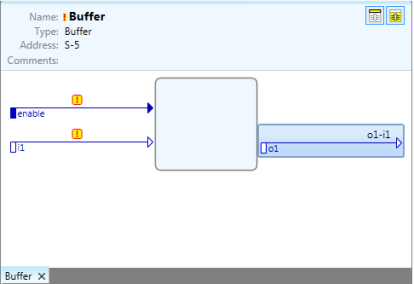
Note that If the signal has the special signal name "//"you would not be able to trace it's routings.