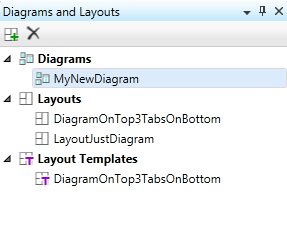
The Diagram/Layout Managertool windowprovides a way to create, display and organize your diagrams, layouts, and layout templates in a tree where the diagrams, layouts, and layout templates are shown as primary nodes. Layouts and layout templates could have child nodes that are references to a diagram and to various symbols or signal traces.
The Diagram/Layout Manager tool window has a toolbar allowing creation and deletion of diagrams, layouts, and layout templates. Deletion of any child of a layout/layout template is also possible, meaning that the layout positioning is maintained but that the referenced window is empty of content.
|
Icons |
Purpose |
|
|
Create a new Layout/Layout template |
|
|
Delete a Layout/Layout template. |
Layouts contain the position of windows and their contents, whether diagrams or Symbol/Signal editor(s), and the scroll position of each window. A single diagram may be shown in multiple windows of a layout simultaneously and the content is synced automatically if a change is made. If you delete a diagram from a layout this does not delete the diagram from your project, it only deletes it from the layout.
Layout templates only save the positions and arrangement of windows in the Layout . Notice that layout templates do not save any data!
There are 2 MAIN differences between layouts and layout templates:
The layouts save the content, templates - do not!
Layouts are stored with and can only be used with your project, layout templates can be used system wide.
Double-clicking on any diagram, layout or layout template in the Diagram/Layout Manager tool window opens it in the Program Designer's Workspace.
Since diagrams and layouts are saved with your project they must have unique names within the project. Note that layout and layout templates must be saved explicitly. On the other hand diagrams are saved implicitly, .i.e. dismissing the visual display of a diagram does not delete the diagram – it saves it!
Creating and modifying diagrams:
Create a new diagram. Alternatively, go to the Diagram and Layout tool window, choose an existing diagram and double click on its name to open it.
Place items in the diagram. Note that when there a changes to the diagram its name is marked with a * in the Diagram and Layout tool window.
To save a new layout:
Add to the Workspace any desired Diagram(s), Symbol and /or Signal Editor(s), even blank tabs.
Arrange all items as needed.
Press the Create a new Layout/Layout template button  in the Diagram/Layout Manager toolbar.
-or-
Alternatively press 


Type a name for your Layout in the Save Layout dialog.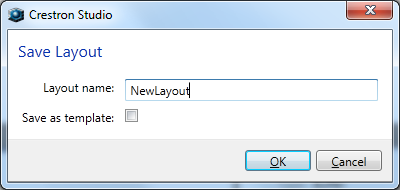
Press OK. The newly created/saved layout is added to the Layouts node of the Diagram/Layout Manager tool window.
Layouts that have been changed have to be explicitly saved. To save the changes in a new layout, type in a different layout name in the Save Layout dialog.
To save a new layout template:
Add to the Workspace any desired Diagram(s), Symbol and /or Signal Editor(s), even blank tabs and arrange all items as needed.
-or-
open an existing layout
Press the Create a new Layout/Layout template button in the Diagram/Layout Manager toolbar
-or-
Alternatively press
Type a name for your Layout template in the Save Layout dialog and check the Save as template check box: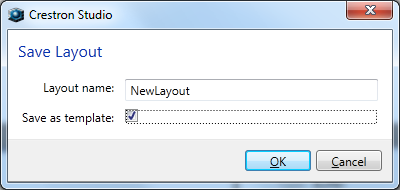
Press OK. The newly created/saved layout template is added to the Layout templates node of the Diagram/Layout Manager tool window.
