Click
on the text:  that appears in the middle of the
Workspace when initially opening
Program Designer
that appears in the middle of the
Workspace when initially opening
Program Designer
-or-
Click
on the New Diagram icon  in the Program Designer Toolbar.
Alternatively press
in the Program Designer Toolbar.
Alternatively press 


 .
.
A Diagram represents a canvas where one or multiple Symbol and Signal Editor(s) can be positioned. The diagrams are particularly useful when a visual representation of the routing of signals between the symbols is needed. When first created a Diagram is docked, however it can be resized and/or moved to another location in or outside the application window similar to a tool window.
To create a new Diagram
Click
on the text: that appears in the middle of the
Workspace when initially opening
Program Designer
-or-
Click
on the New Diagram icon
in the Program Designer Toolbar.
Alternatively press .
To add a symbol to the Diagram
Double-click on the symbol in Logic Explorer to add it to the
canvas of the diagram
- or-
Drag and drop the desired symbol from
the Symbol Library or Logic Explorer
- or-
Type the speed key name of the symbol
and press  .
.
To tile open Symbol/Signal Editors in the Diagram
Open the desired Symbol/Signal Editors
Click
the Tile Items icon  in the Diagram's
Toolbar.
in the Diagram's
Toolbar.
To un-dock a Diagram
Point to the tab at the bottom of the Diagram 
Right-click on it and select Float
from the menu: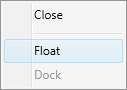
To close a diagram
Use to close
the Diagram in focus
to close
the Diagram in focus
-or-
Point
to the tab at the bottom of the of the Diagram
and click on 
-or-
Select
the tab at the bottom of the of the Diagram
and choose Close from the
right-click menu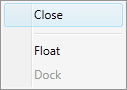
To close all open Diagrams
press . (Note
that this keyboard shortcut will also close any other open Symbol/Signal
Editor/Trace window(s) and/or Program
Designer Tabs)
. (Note
that this keyboard shortcut will also close any other open Symbol/Signal
Editor/Trace window(s) and/or Program
Designer Tabs)
To adjust the zoom level of the Diagram:
You can "zoom in"
to get a close-up view or "zoom out" to see more symbols at
a reduced size by pressing
and then turning the mouse scroll wheel forward (zoom-in) or backward
(zoom-out).