 button in the Program
Touch Screens section of Design
& Program.
button in the Program
Touch Screens section of Design
& Program.Crestron Studio®
fully supports Page
Generation - the automatic generation of full touch screen design
and programming for it and all controlled devices, from a design
template. Page generation can be initiated by launching the Page Generation Assistant from the
context menu for the desired touch screen, or by pressing the button in the Program
Touch Screens section of Design
& Program.
Page generation will also automatically start on opening Touch Screen Designer
for the touch screen for the first time or after a new controlled device
has been added to the system when the Auto
Page Generation check box in Functionality
properties for the touch screen is checked.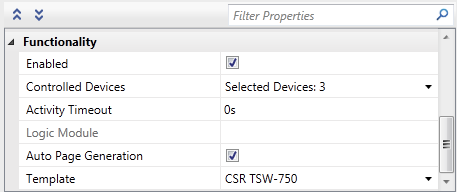
NOTE: At this time automatic page generation for DMPS3-300-C is enabled by default in order to include microphone mute sub-page in the presentation templates.
To generate pages for specific controlled devices using the Page Generation Assistant:
Create a new generated system project.
Add locations and devices as needed. Make sure to have at least one touch screen, for example TSW-750 and a controlled device, for example Cisco DVR.
Right-click on the touch screen and select Generate
Pages...from the context menu.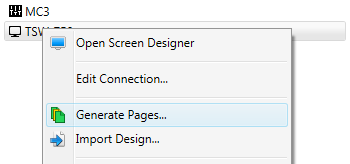
Check all devices that will be controlled by the touch screen
and will have pages and programming generated,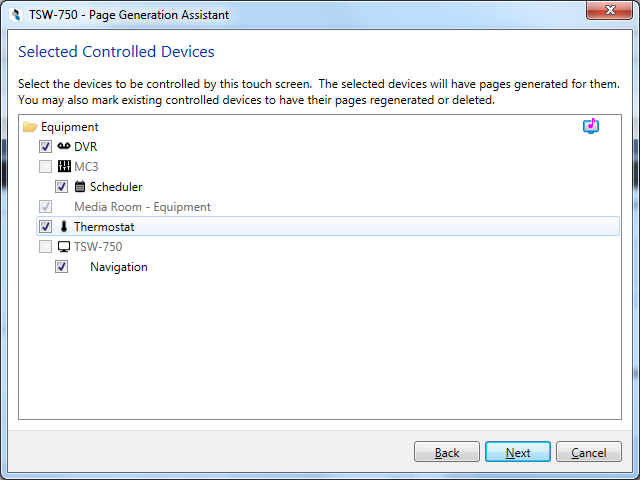
then press Next.
Note that controlled devices in same location as the touch screen and
all controlled devices in Equipmentwill
be checked by default. If desired un-check unwanted devices. The controlled
devices list also displays all locations enabled
as Media Zone or Lighting
Zone.
NOTE: Unchecking a device will
prevent Crestron Studio®
from attempting to build pages for that device in the future unless
you specifically select it again!
The summary page lists all devices for which pages will be generated,
regenerated or deleted.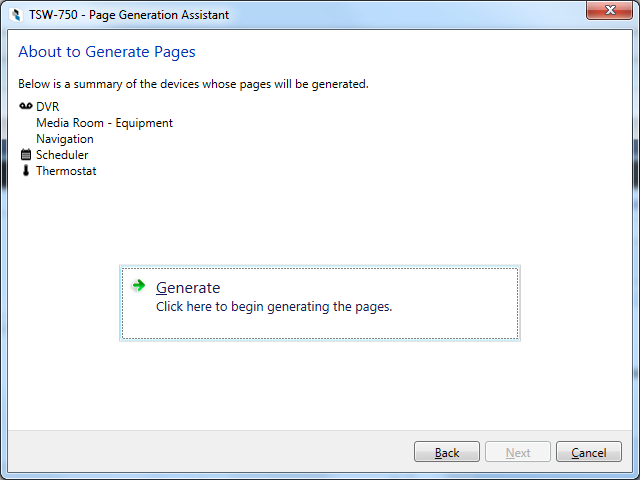
Press  to continue with page generation or press:
 to return
to previous page(s) and edit your selections.
to return
to previous page(s) and edit your selections.
 to
exit the Page Generation
Assistant dialog
to
exit the Page Generation
Assistant dialog
 to cancel page generation
Note that once started, page generation cannot be cancelled.
After a successful page generation press Finish
to return to System Designer.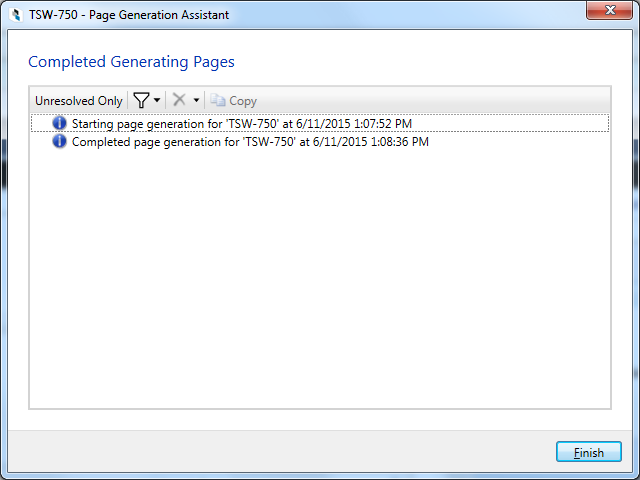
To trigger page generation by setting the Functionality properties in the Properties Grid:
Create a new generated system project.
Add locations and devices as needed. Make sure to have at least one touch screen, for example TSW-750, and a controlled device, for example Cisco DVR.
Select the touch screen. If necessary, press  to show the Properties Grid
(when hidden).
to show the Properties Grid
(when hidden).
Navigate to the Page Generation
property in the Properties
Grid of the touch screen: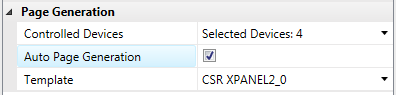
and check the Auto Page Generation
check box.
Choose a template (consists of touch screen pages that control
all selected controlled devices,) by selecting from available
templates in the Template
drop-down list
By default, Crestron Studio®
will use the Crestron supplied template for the chosen touch screen.
NOTE: As some touch screens
(for example, DGE-2, Crestron App, etc.) may have available more than
one templates make sure to choose the template that matches most closely
your actual device: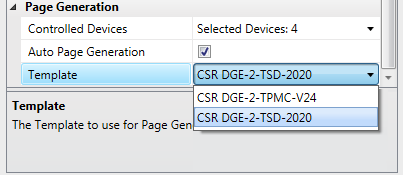
(optional) Choose controlled devices for which to generate pages
in the Controlled Devices
dialog: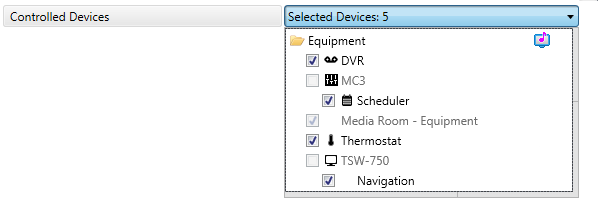
Note that if you skip steps 5 or/and 6 you'll have opportunity to set
them later.
Right-click on the touch screen and select Open Touch Screen Designer from the context menu.
Page Generation Assistant
dialog opens: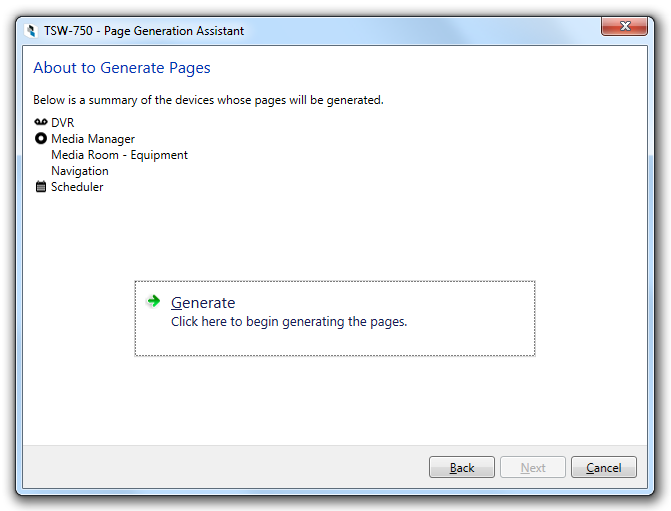
Press to continue with page generation and then
to Touch Screen Designer.
Otherwise press:
 to return
to previous page(s) and edit your selections.
to return
to previous page(s) and edit your selections.
to exit the Page Generation Assistant dialog
to cancel page generation and continue
to Touch Screen Designer
To trigger page generation for all devices
Create a new generated system project.
Add locations and devices as needed. Make sure to have at least one touch screen, for example TSW-750 and a controlled device, for example Cisco DVR.
Visit the Build screen and click "Build".
A panel project for the TSW-750 will be fully generated including pages for controlling the DVR player. If more devices are added later, a subsequent build will include their pages in the project as well.
To regenerate all pages
Start Page Generation Assistant by selecting Generate Pages... from the context menu of the touch screen.
Select Delete existing, generated
pages, including non-device pages check box at the bottom left
of the Page Generation Assistant
dialog: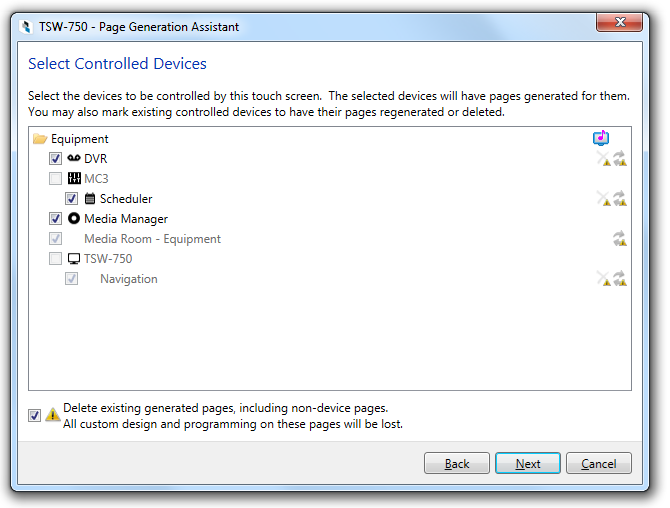
then press Next.
In the summary page all devices for page regeneration: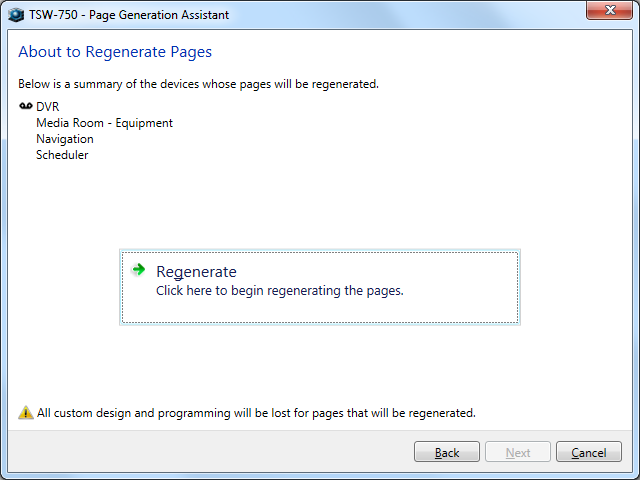
press  to continue with page
regeneration.
to continue with page
regeneration.
To regenerate pages for specified devices:
Start Page Generation Assistant
by selecting Generate Pages...
from the context menu of the touch screen: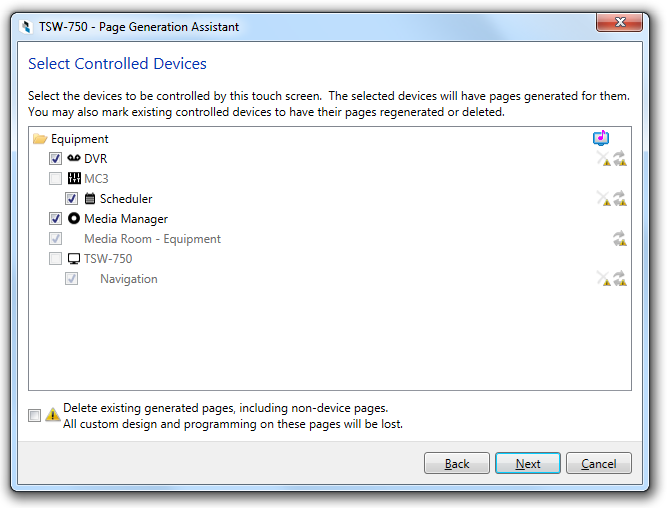
-or-
Display the drop down list for the Selected
Devices property: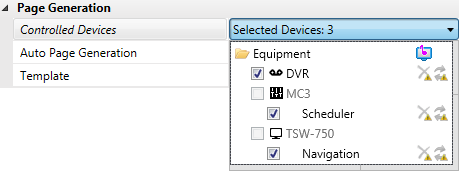
Select the Regenerate Icon  to the right
for each device that will have its pages regenerated:
to the right
for each device that will have its pages regenerated: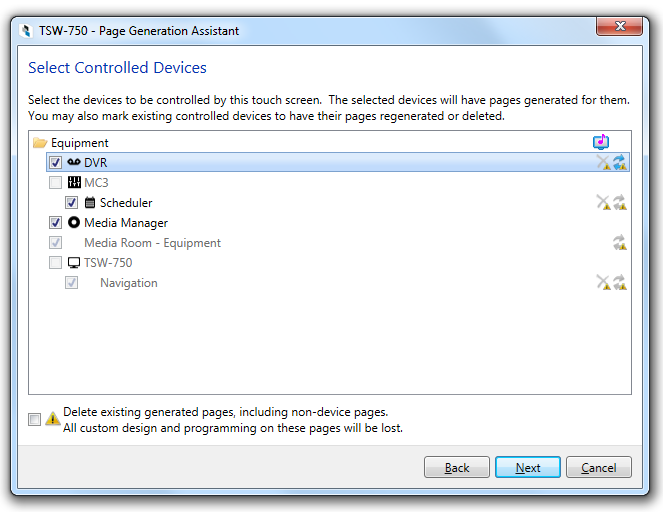
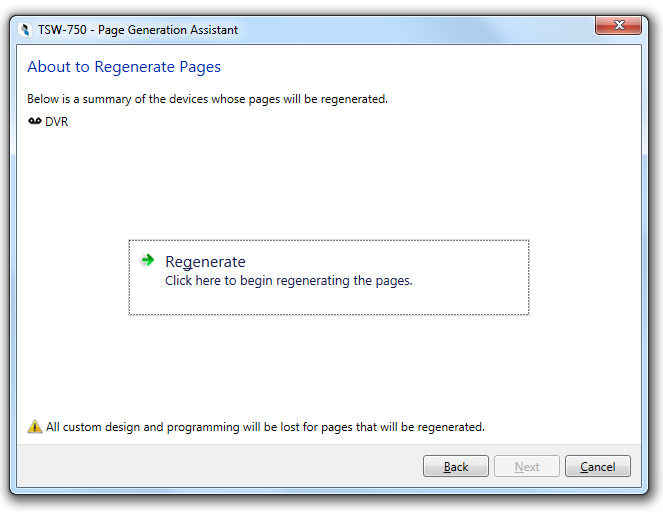 to continue with page
regeneration for the selected devices.
to continue with page
regeneration for the selected devices.
To delete pages for specified devices:
Start Page Generation Assistant
by selecting Generate Pages...
from the context menu of the touch screen:
-or-
Display the drop down list for the Selected
Devices property:
Select the Delete Icon  to the right for each device that will have its pages deleted: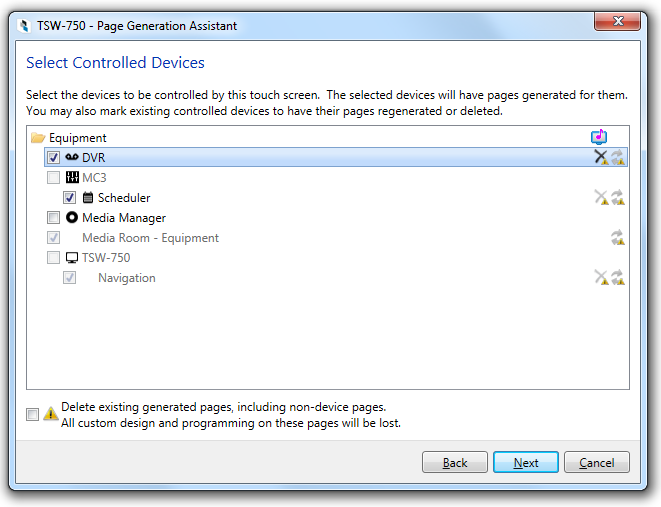
In the summary page: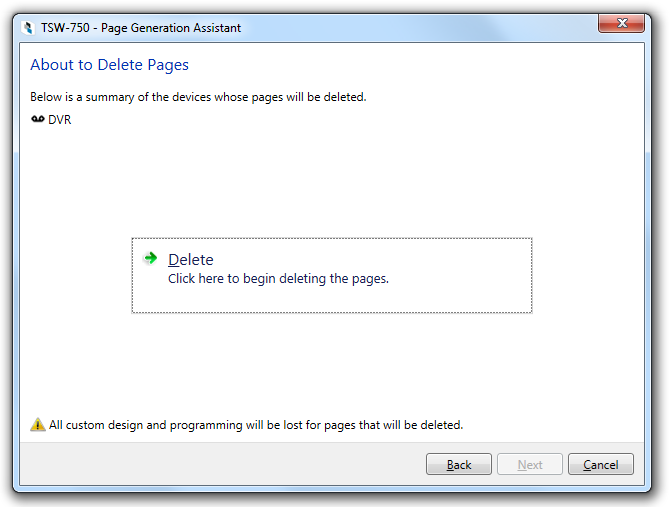
press  to continue with page deletion for the selected
devices.
to continue with page deletion for the selected
devices.
NOTE: Selecting:
 (the check box preceding the device) will delete
the current generated pages now and will never build them again, unless
the check box is selected again will delete the current
pages now and build them again later (usually at build screen). Effectively
this allows you to queue up a whole series of panel building operations
which will be click BUILD and walk away while the app does everything.
will delete the current pages now and build
them again now
(the check box preceding the device) will delete
the current generated pages now and will never build them again, unless
the check box is selected again will delete the current
pages now and build them again later (usually at build screen). Effectively
this allows you to queue up a whole series of panel building operations
which will be click BUILD and walk away while the app does everything.
will delete the current pages now and build
them again now