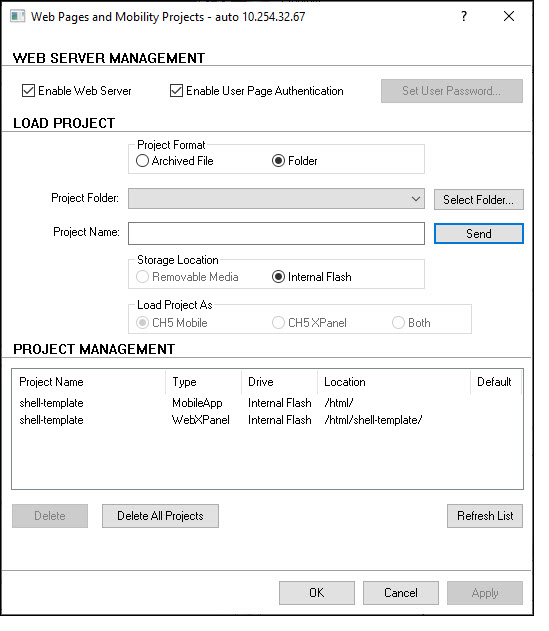
The Web Pages and Mobility Projects function allows users to upload Web Pages and Mobility Projects to a control system.
Mobility Projects are downloaded from Toolbox to a Crestron Control System via the control system's IP address or USB port. From the Control System, a Mobility Project can then be uploaded to an iPhone or other smartphone running the Crestron App.
A control system can store multiple projects. Different project types--for example Mobile App or WebXPanel-- are used by different user interfaces. Projects can be stored on the control system's Internal Flash memory or an external flash drive (“Removable Media”):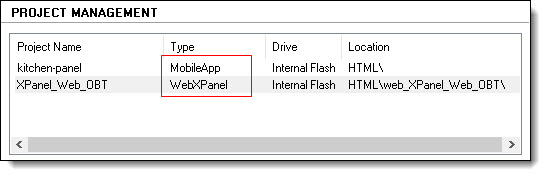
Mobile projects are loaded to the HTML root folder while Web projects are loaded to a sub-folder under the HTML root folder. The sub-folder name can be anything, but typically it is the same as the web project name.
Web projects can be loaded to either the internal or external flash, Mobile projects can only be loaded to the internal flash.
Rules for Loading Multiple Projects
The default project is displayed when the control system's URL is entered.
Note: Only a web page can be a default project.
To load projects
Select the Enable Web Server and Enable User Page Authentication check boxes, if applicable , and click Apply. 
Enable User Page Authentication turn authentication on or off for User Pages.
|
Notes: |
The control system, in use, and its firmware version determines if the Enable User Page Authentication check box is displayed. For example, this check box will not be displayed on a CP3N with older firmware. Whereas, the check box will be displayed on a CP3N with the latest firmware or a 4-Series control system with any firmware.
User Pages--with private information--may be found on the Web pages. Selecting the Enable User Page Authentication check box requires the user to provide the required credential (i.e: password) to access the User Pages. |
This will reboot the control system.
Optionally, click Set User Password button to open the Set Password dialog box, type a password into the text field and click OK.
The password is required whenever the user connects to the control system's URL to view the Web pages. The same user password applies to all loaded projects.
To clear the password, open the Set Password dialog box and click Disable Password.


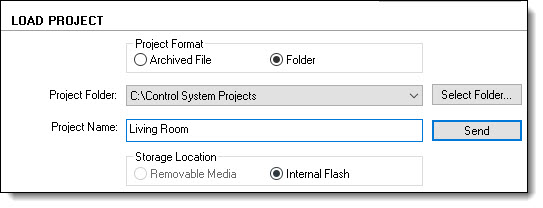
In the Storage Location group box, select either the Removable Media or Internal Flash radio button to designate where to send and storage the project.
Click the Send button.
MC3 ONLY - LOAD CH5 PROJECT 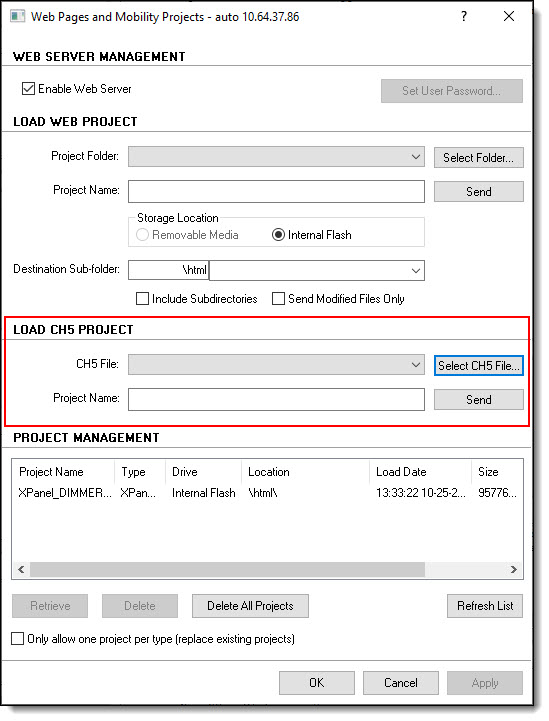
MC3 Control Systems use a LOAD CH5 PROJECT section--which appears only for MC3s--of the dialog box.
CH5 FILES - LOAD PROJECT AS
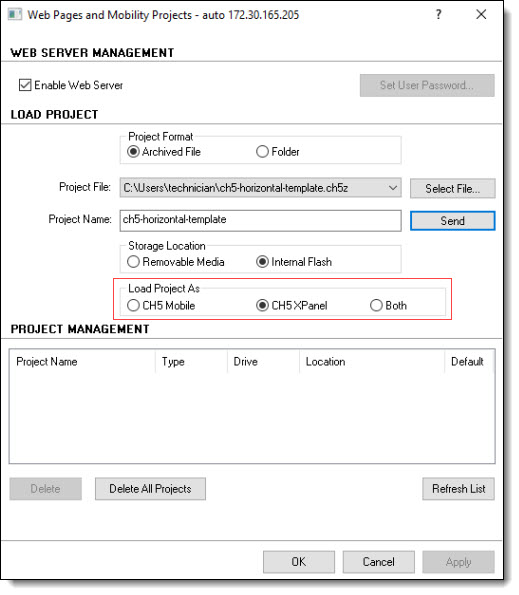
CH5 File-based projects can be loaded as a CH5 Mobile or CH5 Xpanel project or Both.


Web Projects are downloaded from Toolbox to a Crestron Control System via the control system's IP address or USB port. The control system, in turn, functions as a web server.
To launch the Web Project
Project Management
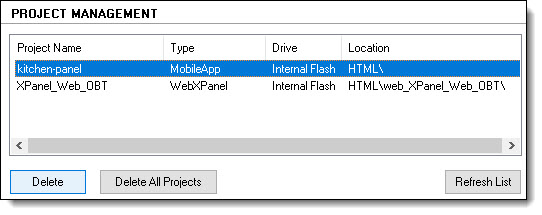
To delete projects
To refresh the project list