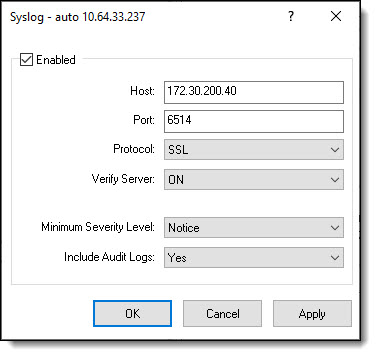
Use the Syslog function to capture and store system messages. These messages can be used for system management, security auditing and debugging purposes.
Syslog system message categories include:
To Enable Syslog
Select the top-left Enabled check box:

In the Host text box, type the host name of the host where the Syslog system messages will be stored.
Note: The Syslog Host requires a TLS-enabled Syslog server with the applicable security certificates and sufficient disk space to store the active Syslog. In addition, the Syslog Host should be configured to archive older Syslogs and off load them over time as Syslogs age and increase in file size.
In the Port text box, the Host's port number.
Click on
the Protocol drop-down and select
the applicable protocol:
Click on
the Verify Server drop-down and select
if server verification should be ON or OFF:
Click on
the Minimum Severity Level drop-down and select
the applicable severity level:
Click on
the Include Audit Logs drop-down
and select either No or Yes to exclude or include the Audit Logs
with the Syslog, as applicable:
Note: If you select No, then the Audit Logs are not sent to the remote Syslog server. The Audit Logs can be retrieved from the controller after disabling audit logging. Use the System Info Tool to view the Audit Logs.
Enabling Audit Logs to be sent to the Syslog server does not enable audit logging; which is done via a separate command—the auditlogging command.
Click the Apply button to apply the Syslog dialog box settings.
Click the OK button to exit the Syslog dialog box and return to System Info.