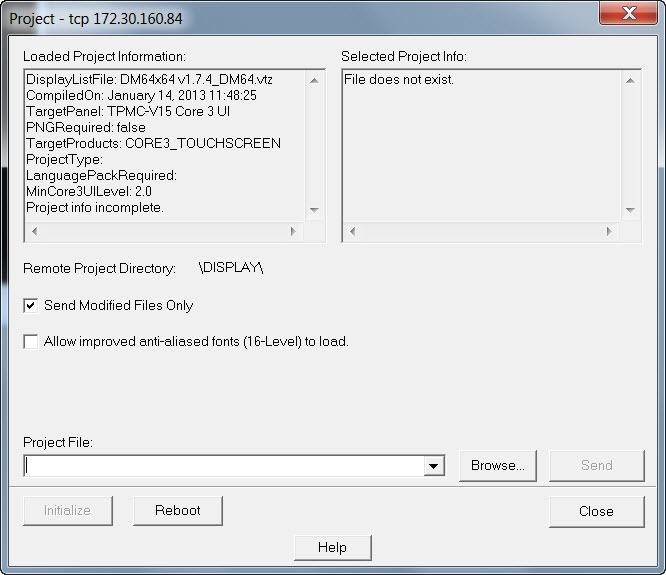
Use this function to upload a compiled VTPro-e project to the touch screen.
Upon connecting to the touch screen the "Loaded Project Information" window will display information about the project that is currently loaded in the touch screen (if supported). The "Selected Project Information" window will display information about the project currently selected for upload (VTZ files only). The "Remote Project Directory" field will display the file path of the directory where the project files will be stored on the touch screen.
To upload a project
Click the Browse button and locate the compiled VTPro-e project.
Select the files to upload, as follows:
To send only files that have been modified since the last upload, click Send Modified Files Only. Toolbox uses the filename, size and time stamp information for each file within the project (if multiple files exist) to determine if a file has been modified.
If you move the VTPro-e project file (VTP file) to a different directory and recompile the file, VTPro-e will create a new compiled file (VTZ file) in the directory, which will contain new file information. If the new file is then selected for upload, this will cause the entire VTZ file to be uploaded to the touch screen, even if "Send Modified Files Only" is selected. To prevent this, move the original VTZ file together with the VTP file to the new directory before re-compiling. "Send Modified Files Only" should then work as expected.
TPMC-Series panels support receiving the entire VTZ file as one file, which can dramatically improve transfer time. This may cause additional (unmodified) files to be uploaded if Toolbox determines that sending the entire file will be faster than uploading only the modified files.
Note: Send Modified Files Only is not available for use on Android-base touch screens which include the TSW-x52 Series (ie: TSW-752) and TSW-x60 Series (ie: TSW-1060).
TPS-Series touch screens with firmware later than 3.XXX, as well as the DVPHD support improved (16-level) anti-aliased fonts. (Previous versions support 4-level anti-aliased fonts.) To upload the new fonts, click the Allow improved anti-aliased fonts (16-Level) to load check box.
The output resolution for certain devices, such as the PCM3-XP, can be configured in the Display Options group box. Select the resolution from the Output Resolution drop-down list, select the Enabled check-box and then click the Apply button.

Click Send to transfer the files. A progress bar will display the status of the transfer as the project is uploading. If any pages in the touch screen are not present in the project, those pages will be deleted from the panel.
To erase the internal file system of the touch screen (TPS-Series only) click the Initialize button.
To reboot the touch screen, click Reboot.
Direct Project Loading
Certain touch screens--such as the TSW-1060--support Direct Project Loading.
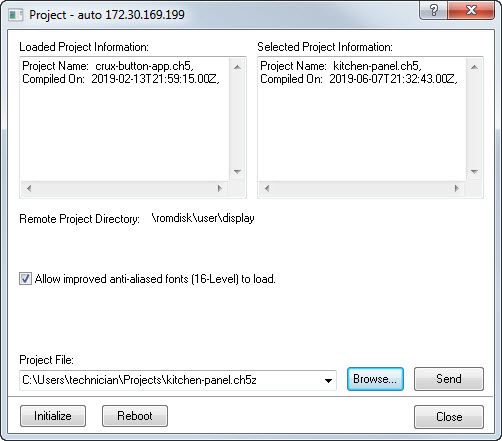
Direct Project Loading requires that all project-related files--modified and unmodified--be sent to the touch screen as a single file in one of two file formats: *.vtz or *.ch5z.