Firmware
Accessing Device
Functions
Use this function to update device firmware.
Before updating the device firmware you have to download the firmware
files from the Crestron Web site to a directory on your hard drive.
-
The Firmware dialog will show the model and current
firmware version of the device.
-
The Update section shows the new firmware version
of the device, and the filename of any available release notes. Click
View Release Notes to open
the release notes to review pertinent information about the update
before uploading.
To Update Firmware

-
Click Browse
to locate the firmware file.
-
In the Open
dialog box, drill to the applicable firmware file. A valid firmware
file may stored in a puf,
zip or cab
file.
-
Click the Open
button, this populates the Firmware
File drop-down with the selected file.
-
Click Send
to upload the file to the device.
To Update Control System Firmware
Control Systems also allow you to update individual firmware components separately; these firmware components include:
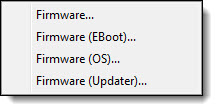
- Firmware... (Eboot): Bootstrap code
- Firmware... (OS): Underlying OS (in the case of 3-Series, CE and in the case of 4-Series, Linux) as well as all of Crestron’s custom applications that make it into a control system (i.e. TLDM, CIP, etc.)
- Firmware... (Updater): An image that knows enough to be able to update the main operating system image (i.e. you cannot update the OS image if the OS is running, so when the OS is updated, it goes into the Updater Image).
- Use the Device Discovery Tool to discover/find the control system.
- Select the control system.
- In the right-hand pane, check the Functions button.
- From the context menu, choose the firmware component to update for the Firmware... menu item's sub-menu:

Alternatively:
Use the System Information Tool and select Functions from the menu bar:

- Select the applicable firmware component from the sub-menu:
The firmware component's name appears in the Firmware dialog box's title bar:
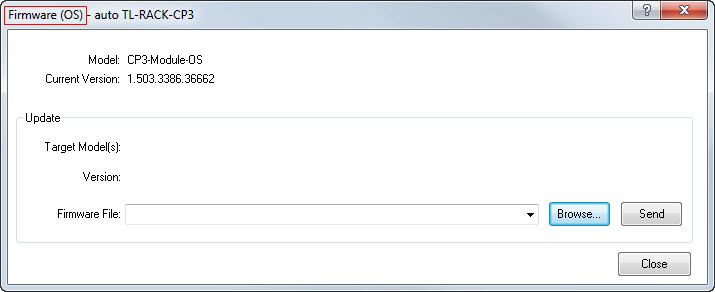
In this example, Firmware OS component was selected from the submenu.
- Click Browse
to locate the firmware file.
- In the Open
dialog box, drill to the applicable firmware component file. A valid firmware
file may stored in a puf,
zip or cab
file.
- Click the Open
button, this populates the Firmware
File drop-down with the selected file.
- Click Send
to upload the file to the device.