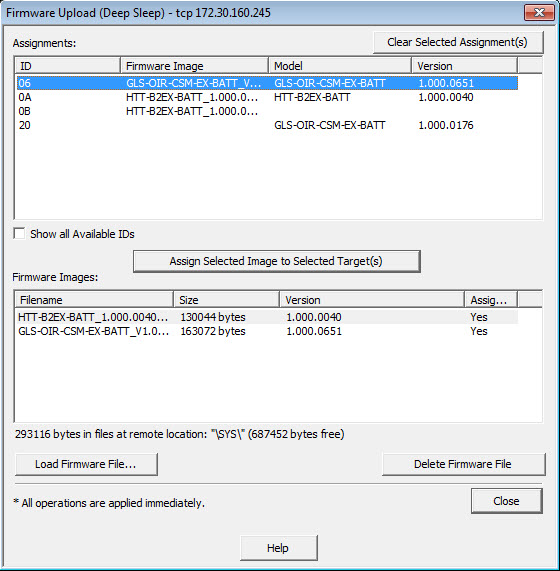
Use this function to upgrade the firmware for devices that spend extended time periods in the sleep state. A unique firmware image file for the deep sleep device is uploaded to the RF gateway and the deep sleep device's RFID is selected.
The RF Gateway initiates the firmware upgrade immediately if the device is awake and powered. Otherwise, the firmware upgrade is initiated when the device wakes from its sleep state; this could be hours or days depending on the device settings.
When the device wakes and re-establishes communication with the RF Gateway, the gateway initiates the upgrade if the following criteria are met:
A firmware image file is associated with the device RFID.
The device is compatible with the firmware image file.
NOTE: Each device RFID can have only one associated firmware image file.
Firmware Upload (Deep Sleep)
To add firmware images
Click the Load Firmware File button.
Select the applicable firmware image file in the Open dialog box.
Click the OK button, to add the firmware image file to the Firmware Images table.
The Firmware Images table lists the file's attributes: filename, size and version. The Assigned? column indicates whether or not a listed firmware image file is assigned to a target device
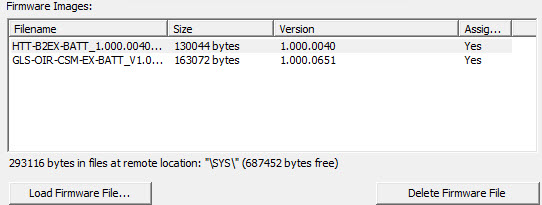
To delete firmware images
In the Firmware Images table, click on the desired firmware image file(s).
Click the Delete Firmware File button.
To assign firmware images to target device
In the Firmware Images table, click on the desired firmware image file.
In the Assignments table, click on the row with the RFID of the target device. Press Ctrl+Click to select multiple target devices.
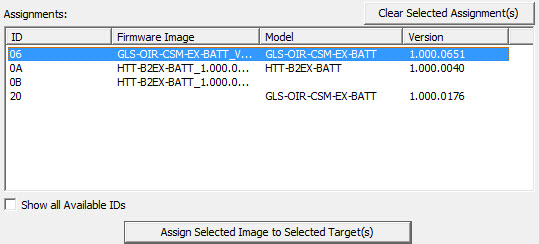
In this example: No device was found on 0B. But a firmware image file can be assigned.
Note:
Deep sleep devices that have not checked in with the RF Gateway will not be shown in the Assignments table.
However, a firmware image file can be assigned to a RFID, even if a device is not present or is currently in sleep mode. (See below: Step 3: Show all Available IDs button)
The RF Gateway initiates the upgrade when the device wakes and re-establishes communication.
Select the Show all Available IDs button to show all RFIDs--including IDs for devices that are not currently present or for any devices currently in sleep mode.
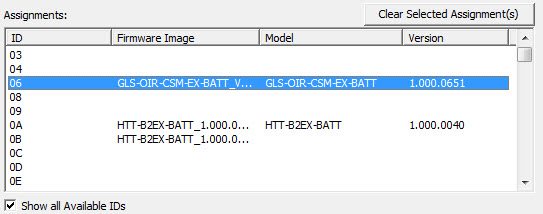
In this example 07 is not shown. A device was found on this ID, but it does not support Deep Sleep. Therefore, it is not available for any assignments.
Click the Assign Selected Image to Selected Target(s) button.
To clear selected assignments
In the Assignments table, click on the row(s) with the assignment(s) to be cleared. Press Ctrl+Click to select multiple assignments.
Click the Clear Selected Assignment(s) button to clear the assignment(s).
To initiate the upgrade
Click the Close button located at the lower right-hand corner of the Assignment Grid.
The assigned upgrades will occur immediately on any devices that are awake and powered. Otherwise, the upgrade will occur as soon as the selected device(s) wakes from the sleep state and re-establishes communication with the RF Gateway.