CEN-TIA Menu Project
Accessing Device Functions
Use this function to send menu and audio files to the CEN-TIA.
To send a project to the CEN-TIA
-
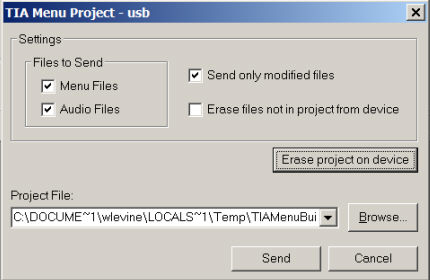
Specify the project to send. If a project is currently open, the file path of the current project will automatically be selected as the Project File. Note that CEN-TIA projects are decompressed to a Temp folder during programming. Therefore the path shown by default will be a Temp path that contains the project.
To send a different project (not the current project), click Browse and locate the TIA file.
-
Select the files to send:
-
-
Select Menu Files to send all menus, commands and events; select Audio Files to send all audio files.
-
Click Send only modified files to send only files that have changed since the project was last uploaded.
-
Click Erase files not in project to remove any files that are not currently included in the project from the CEN-TIA. This means that when the project is uploaded to the CEN-TIA the files will match exactly.
-
Click Erase project on device to delete the project currently loaded in the CEN-TIA.
-
Click Send. This will transfer the project files to the CEN-TIA and overwrite any files with the same name, but will not delete anything else unless one of the Erase commands is selected. A progress bar will be displayed as the files are transferred; a "success" message is displayed upon successful completion of the file transfer.