Appendix B: Use Impersonation in Google Calendar API
Some customers may not want to use the opt-in model where the room shares the calendar with the service account. Instead, a second configuration option is available that will allow the service account (used by Crestron Fusion® software) to access the Google Calendar® API to use the identity of another account.
Typically, the account that the service account impersonates has elevated privileges. With elevated privileges, the account being impersonated can read and write to the room calendar that is being shared.
NOTE: For impersonation, it is not necessary to share room accounts with the service account and should be avoided.
To configure impersonation:
- Open the Google API Console menu using the process described in Initial Setup.
- Select the Permissions link to open the Permissions page. The user can access the service accounts Crestron Fusion will use to access the Google Calendar API.
- Select the Service accounts link to display the services accounts list.
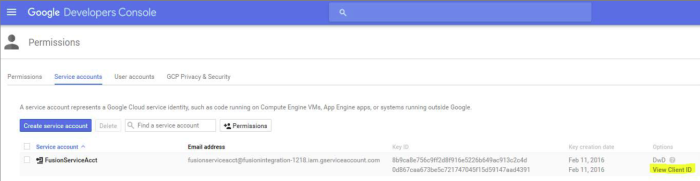
- Select the View Client ID link to open the Credentials form. The View Client ID contains the service account that will use impersonation.
- Note the Client ID for later use, and then select Cancel.
- Navigate to www.google.com and sign in as an Administrator.
- Select the grid icon at the top of the page.
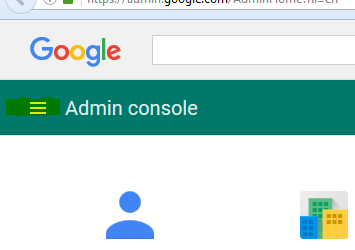
- Select the Admin icon to open the Admin console menu.
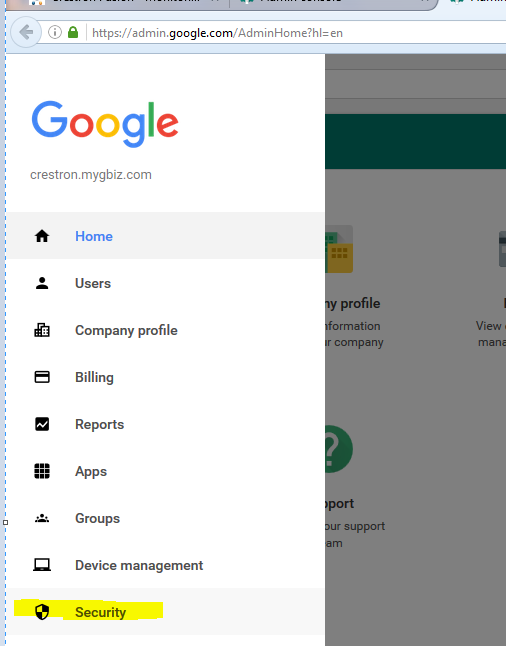
- Select the Security link to open the Security form.
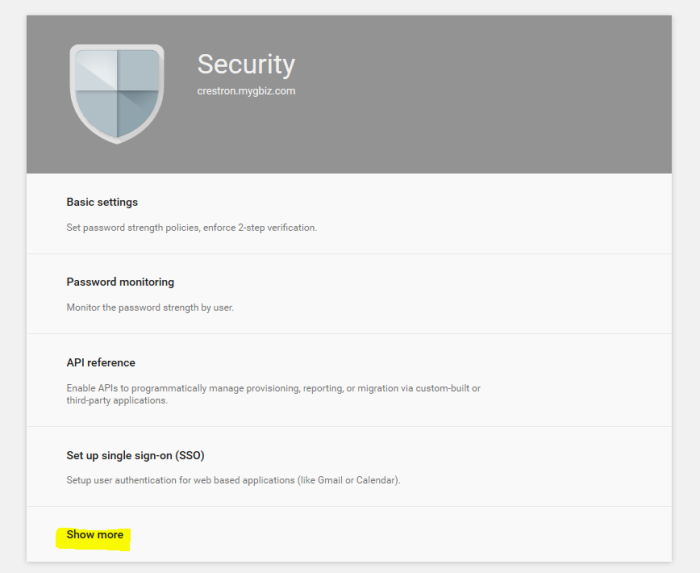
- Select the Show more link.
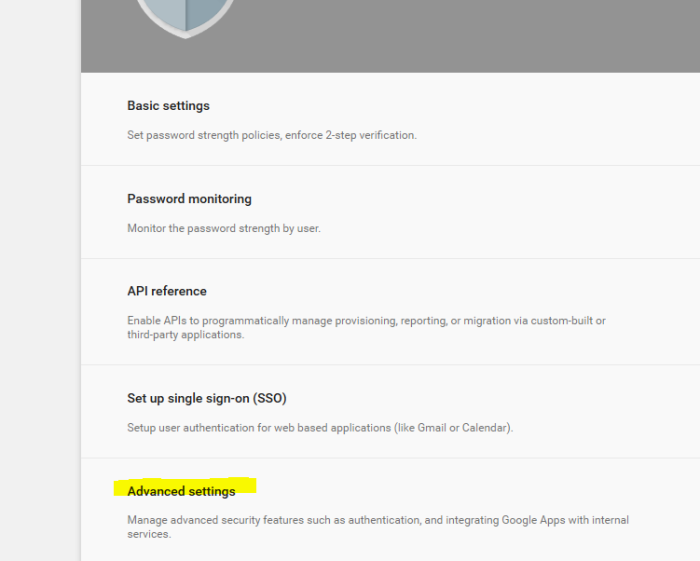
- Select the Advanced settings link.
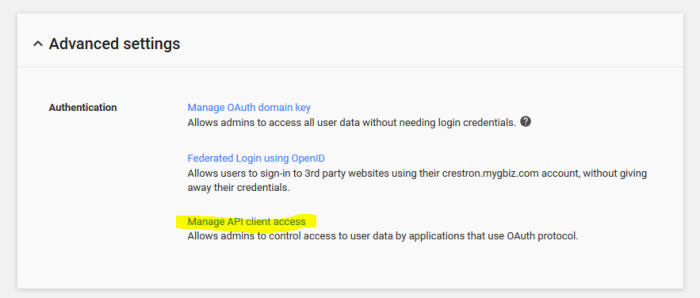
- Select the Manage API client access link to open the Manage API client access page.
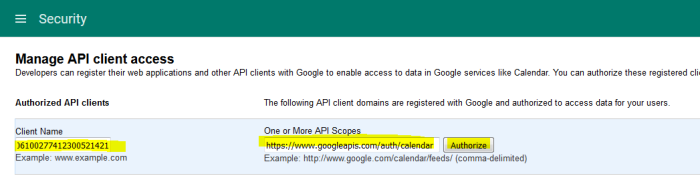
- Enter the following:
- Client Name: Enter the Service Account Name from the Credentials form.
- One or More API Scopes: Enter "https://www.googleapis.com/auth/calendar".
- Select Authorize.
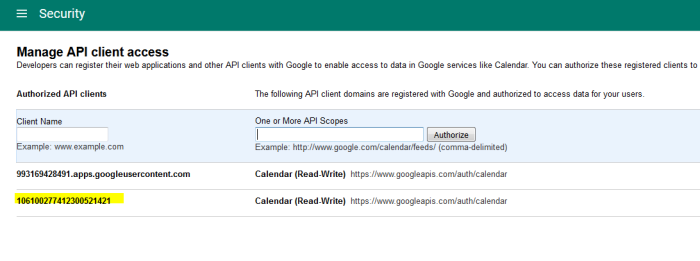
- Confirm that the service account was added to the list. At this point the service account is authorized to access any account.
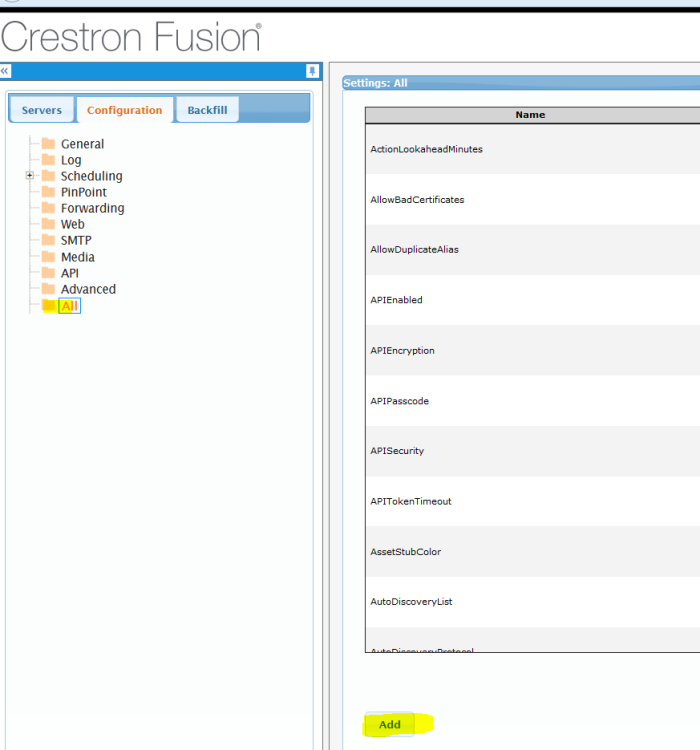
- Open the Crestron Fusion Web Client and select Configuration to open the Configuration page.
- Select All from the tree menu and then select Add to open the Add Config Entry window.
- Determine the user account to be used for impersonation. Typically the admin account is used. However, an account with elevated privileges can be used.
- Obtain the email for this account from the Google API Sign In page.
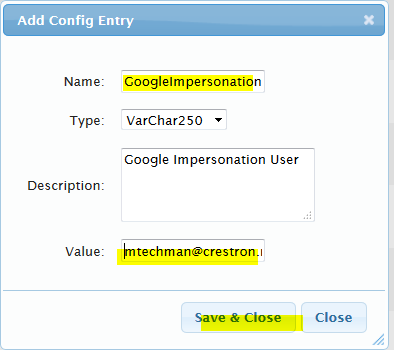
- In the Add Config Entry page, enter the following:
- Name: GoogleImpersonationUser
- Type: VarChar250
- Description: Google Impersonation User
- Value: Email address (from step 18 above)
- Select Save & Close. The service account is now set to impersonate the account with the elevated privileges noted above.
- Run the tests as described in Set Up Crestron Fusion to Access Google Calendar API to confirm the impersonation has been configured properly.
Permissions Link
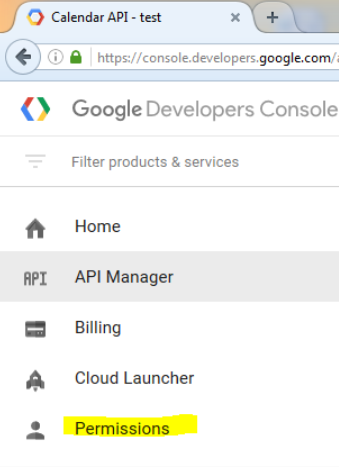
Permissions Link
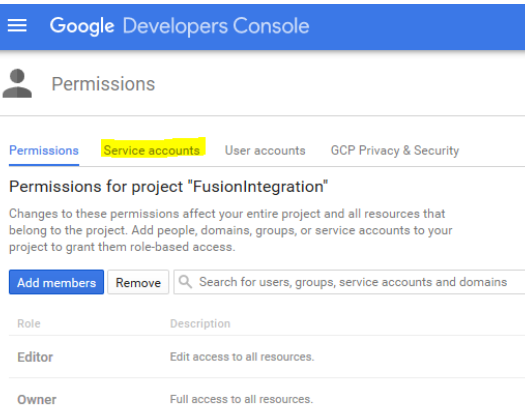
Service Accounts List
Google API Console - Sign in Page
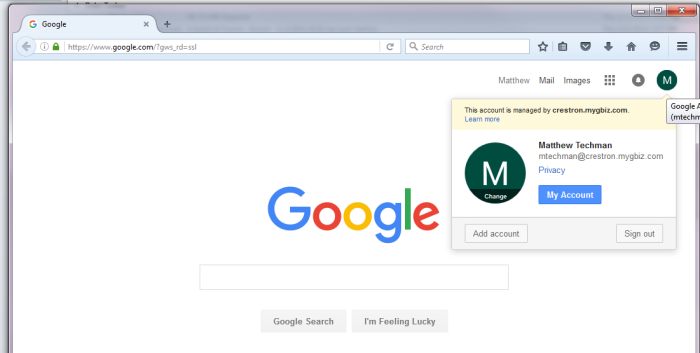
Admin Console Menu
Security Link
Security Form
Advanced Settings Link
Manage API Client Access Link
Manage API Client Access Page
Manage API Client Access Page
Configuration Page
Add Config Entry Page