Adding Devices
All
devices in your system are organized in the System
Tree. By
default the control processor (for example, MC3) is located in the Equipment
room but it may be moved to any other location.
Devices may
be moved to different location(s), copied, renamed, replaced or deleted.
Note that the control processor cannot be deleted.
To add a device to your system do the following:
-
Locate the device in the Product
Browser

-
Drag and drop it to the desired location in the System
Tree
-or-
Select the device and double click on it.
-or-
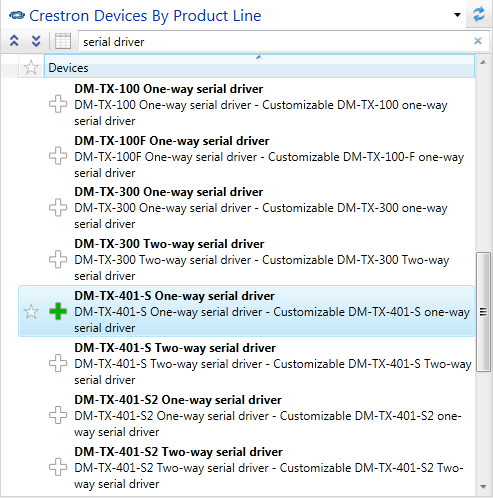
Point to the Plus Sign  icon to the left of the device's Model Name so it turns green
  and click on it.

NOTE:
Serial drivers will not
be automatically added to the corresponding COM ports, so you'll
have to manually find them in the Product
Browser and add them to your system as you would add a new device.
Some devices, for example SWAMP, DM-MD6x6 etc may prompt you to choose
an appropriate logic module to use
IMPORTANT: DO
NOT choose a logic module prefixed with the 'CSR'
prefix if you're working in a 2-Series system!
Any
device, including the control processor, may be renamed. To prevent confusion
all devices should have unique names, e.g. no two devices may have the
same name, regardless of their location in the System
Tree hierarchy. Device names should be between 1 character and 75
characters in length and should not include the following characters:
\/:*?"<>|~$%^#`.
To
rename a device in your project:
-
Select the device in the System Tree
-
Press 
-or-
Right-click and choose Rename
from the menu.
-or-
Point to the Name property
in the Properties Grid of
the device and modify the name as desired.
To move a
device to a different location
To copy a
device
-
Select the device and press 

 to copy it to the Clipboard.
-or-
Right-click the device and select
Copy.
-
Select the target room and press  .
.
-or-
Right-click the target room
and select Paste.