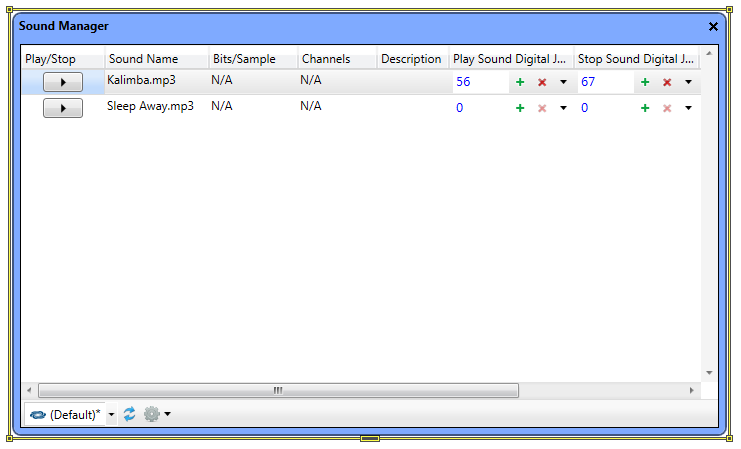
The Sound Manager dialog allows you to add MP3 files to projects for
sound-enabled touch screens. Up to 25 sound files with a duration of 10
seconds or less, can be added to a touch screen project.
To access the Sound Manager dialog:
In Design Explorer (if
necessary change to the Design Settings
View) select check box the in the Visible column by the Sound
Manager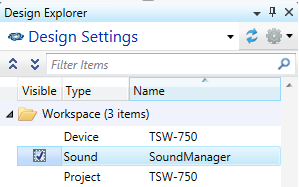
Sound Manager opens in the Workspace.
Alternatively, select Sound Manager in Design Explorer and select the Is Visible check box in the Property Grid.
To add sound files to your touch screen project:
Select one or more sound files in the Resource Library
Drag and drop the desired files to the Sound Manager dialog.
If necessary, press the Play button to verify that the file in the browse field is the desired file
To remove sound files from your touch screen project:
Select one or more sound files in the Sound Manager
Select
Delete from the right-click
menu or press the  key
key
To assign joins to play/stop a sound file in your touch screen project:
Play Sound Digital Join - when set will play the sound (on the rising edge of the signal). The output digital feedback will remain high while the sound is playing until it is stopped or ends playback.
Stop Sound Digital Join - will set a digital input trigger to stop this sound (on the rising edge of the signal).
In the Design & Program
section of System Designer
(or use the Programming
Editor) assign programming as you normally would to attain the
desired functionality.
Any sound that has a Play and\or Stop digital join assigned will appear
in the Programming Editor tool window as follows:
Sound.[sound name] Play Sound
Sound.[sound name] Stop Sound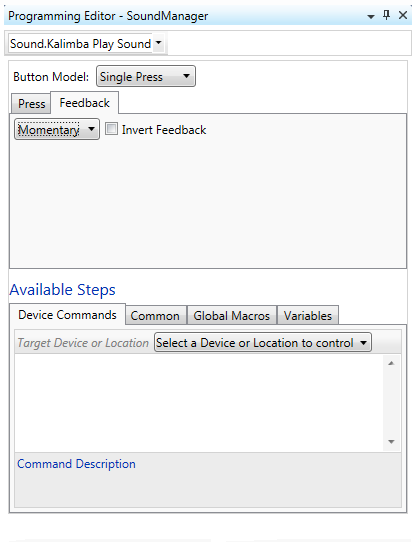
Since Play/Stop Sound Digital Join are standard digital joins, both press and feedback tabs are shown.
When programming has been assigned, the "Play
Sound" and "Stop Sound" text become (rest of text is unchanged):