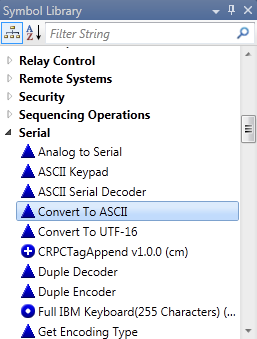
The Symbol Library is a tool window in Program Designer that displays symbols and modules that can be added to the Logic Explorer section of your program.
The icons for all Crestron and User modules, SIMPL+ modules, and the collection of Crestron logic symbols you can find in the Symbol Library are listed below:
Blue triangle icon  represents a built-in symbol
Blue circular icon  represents a module built with symbol-based logic by Crestron
Blue circular icon with a + in the center  represents a SIMPL+ module built by Crestron
Green circular icon  represents a module built with symbol-based logic developed by you or someone else outside of Crestron
Green circular icon with a + in the center  represents a SIMPL+ module built by you or someone else outside of Crestron
Red circular icon  represents a module built with symbol-based logic developed by you or someone else outside of Crestron that is available only to the current project
Red circular icon with a + in the center  represents a SIMPL+ module built by you or someone else outside of Crestron that is available only to the current project
Use the toolbar of the Symbol Library to see the symbols and modules grouped by type, or listed alphabetically.
|
Icons |
Purpose |
|
|
Display grouped by type. |
|
|
Display as a list sorted alphabetically. |
Alternatively, locate a logic symbol/module by typing all or part of the search word in the Filter Criteria field  to filter out and display only the symbols/modules that match the typed full or partial name.
Adding Symbols to the Program and/or View
At any time, clicking on one of the modules and pressing  will add an instance of that symbol to the Logic Explorer, either in the highlighted folder, or before the highlighted symbol. Pressing
 will add it to Logic Explorer AND will open it in a new Symbol Editor tab.

