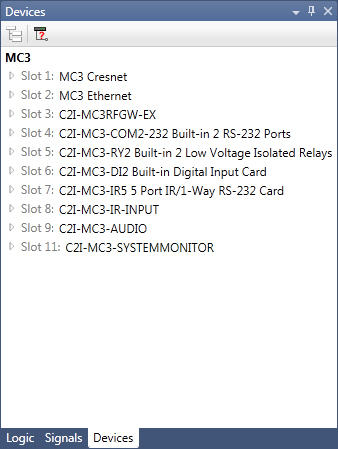
The Device Explorer is a tool window in Program Designer that displays devices in your system in a tree hierarchy where tree branches represent the control processor's slots and sub-slots.
The Device Explorer allows you to drag device slot/sub-slot-based symbols onto the Program Designer Diagram workspace for programming. In addition, device extenders and modules can be added to applicable devices in the device tree.
|
Icons |
Purpose |
|
|
Show unused slots/addresses |
|
|
Show Extenders |
Click on the arrow to the left of the device to view its slots and sub-slots -OR- double-click on the device.
Navigate through the device tree, as necessary, to view additional devices and their slots/sub-slot, expanding device tree branches as needed.
To move a device symbol to the workspace for programming
Navigate to the corresponding device slot/sub-slot with the associated symbol (see above).
Click on the slot/sub-slot, and then drag-and-drop it to the workspace to the left -OR- double-click on the slot/sub-slot.
Program the symbol inputs and outputs as needed.
NOTE: Dragging and dropping a slot/sub-slot opens a Symbol Editor tab for the device symbol, if it is not already opened. Alternatively, you can click on the Click here to a create a diagram message line to open a blank Diagram workspace.
IMPORTANT:
To get help about programming the device, click in the Symbol
Editor of the device or select the device in the Device
Explorer and press  . To get help about the Crestron Studio® application
- press
. To get help about the Crestron Studio® application
- press 
 .
.
To add a device extender or module
Click on the Show
Extenders button  in the toolbar of the
Device Explorer.
in the toolbar of the
Device Explorer.
-OR-
Select a slot (or subslot)device, and choose Show
Extenders from the right click menu: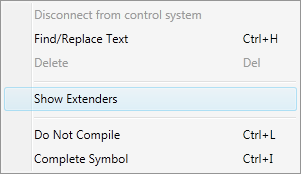
In the resulting tree, double-click on the Device Extenders or the Module branches to display the applicable device extenders or modules.
Select
the applicable device extender or module check box(es).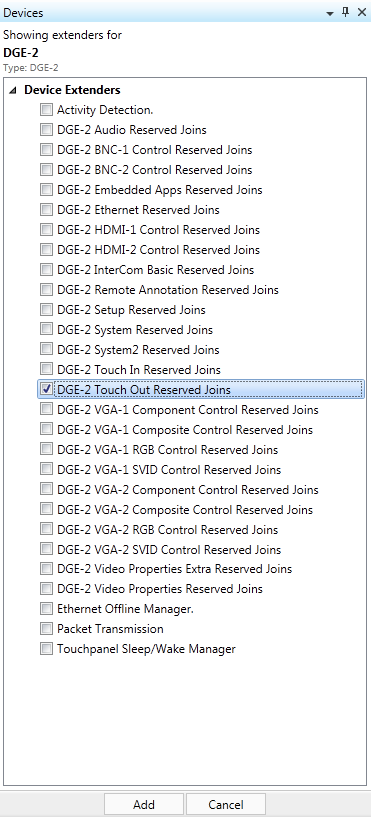
Click the Add button. The device extender is displayed in the device tree. The module is displayed in the Logic Tool Window's logic tree.
To delete a device extender or module
Navigate to the device extender or module in the device tree or logic tree respectively.
Select the device extender or module, and choose
Delete from the right click
menu or press  , then choose Yes
in the Delete Device ExtenderConfirmation
Dialog
, then choose Yes
in the Delete Device ExtenderConfirmation
Dialog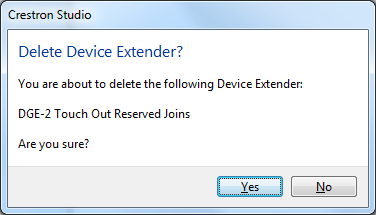
To view unused slots or address
Click
on the Show unused slots/address button  to toggle
on/off the display unused slots or address shown when the device tree
is expanded.
to toggle
on/off the display unused slots or address shown when the device tree
is expanded.