 How to add help desk functionality to a location in Crestron Studio®?
Locations in system projects in Crestron Studio® can take advantage of Crestron Fusion®'s built-in help desk functionality. The help desk functionality facilitates providing real-time remote assistance to help requests sent directly from touch screens residing in presentation rooms. Pending help requests are displayed in Crestron Fusion® to signal that help is needed. From the 'Help Response' dialog, a predefined reply or an answer message with instructions can be send back to the requester’s touch screen.
How to add help desk functionality to a location in Crestron Studio®?
 To add help desk functionality to a location in Crestron Studio®
do the following:
To add help desk functionality to a location in Crestron Studio®
do the following:
Select a location
Find Fusion Help Desk logic device in the Product
Browser and add it to the selected location: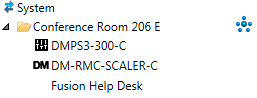
Note: Adding a Help Desk Logic Device to a room will enable the room
as a Fusion Zone (if not previously enabled).
Behind the scenes, a help desk logic module will be connected to the
Fusion Serials of the Fusion Room.
In a Presentation system any touch screen that controls that device
will generate a help desk subpage during page generation and a help
desk icon  will be added automatically to the template's
navigation list to allow user interaction with the help desk subsystem.
will be added automatically to the template's
navigation list to allow user interaction with the help desk subsystem.
How many Help Desk logic devices do I need to add to my system? Can I
have just one? Can I have more than one Help Desk logic device per room?
For any Fusion room that is intended to be help desk enabled, one Help
Desk logic device is required. Surplus Help Desk logic devices are ignored.
Can the help desk functionality be used in Home systems?
If desired, help desk functionality can be used in Home systems as well.
To do so Crestron recommends choosing commercial/presentation templates
for touch screens targeting the Fusion Help Desk logic device or creating
custom help desk icon button and a subpage for the residential template
and hooking them up to the Studio-Fusion Help Desk v.1.1 logic module.
Can I change any properties of the Fusion Help Desk logic device?
The Fusion Help Desk logic device provides 4 predefined help request messages.
The default text and severity for the predefined messages can be changed
at design time in the Properties Grid for the device: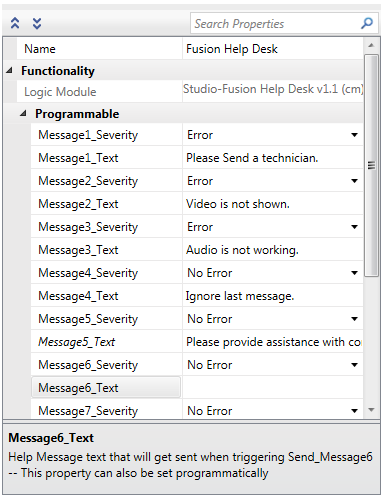
Additionally, custom text and severity can be provided for 6 more help
request messages (up to total of 10 messages).
How to request help from a touch screen in a help desk enabled room?
Simply press the help desk icon in the
navigation list to display the help desk subpage. Then choose a predifined
help request message. 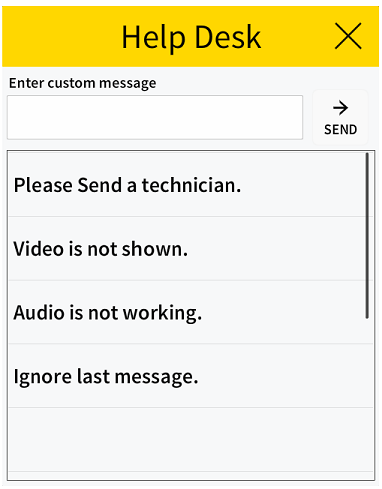
Select touch screens also provide the option to type a custom message in
a text entry field using an onscreen keyboard. These touch screens may
also display ‘From Fusion’ response messages: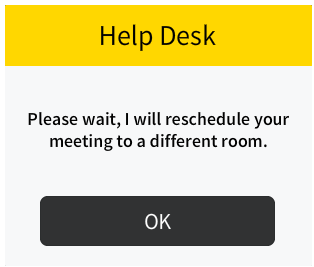
What happens when a help request is sent to Crestron Fusion®?
The Fusion Header Tab in Crestron Fusion® allows the
number of pending help requests to be previewed at a glance:
Help desk requests from all Fusion monitored rooms are displayed in My RoomView tab in the RoomView®
Monitoring section of Crestron Fusion®.
Additionally, in the Room Tree pane on the left, nodes containing rooms
with help requests are displayed in red and help request  icons indicate rooms from
which the help requests originate.
icons indicate rooms from
which the help requests originate.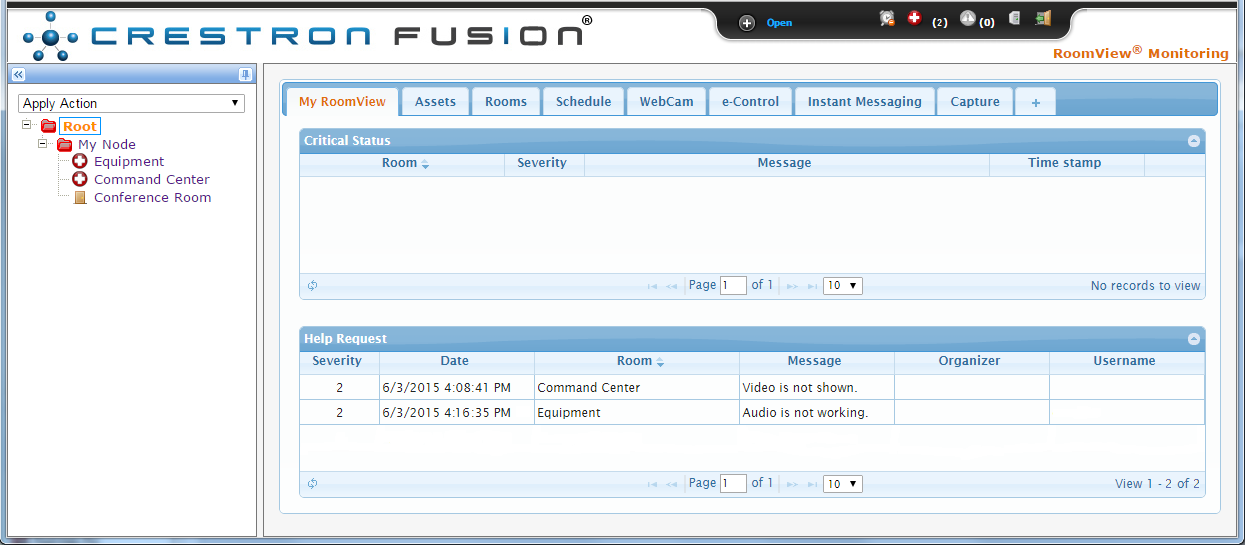
The Help request status table shows the following information for each help request:
severity code
the name of the room
the associated help request message
time stamp
Severity codes, which can be used to prioritize the help requests in order of importance, are defined as follows:
0 = No error
1 = Warning
2 = Error
3 = Critical Error
4 = Fatal Error
How a help request can be resolved?
You can resolve a help request by doing the following:
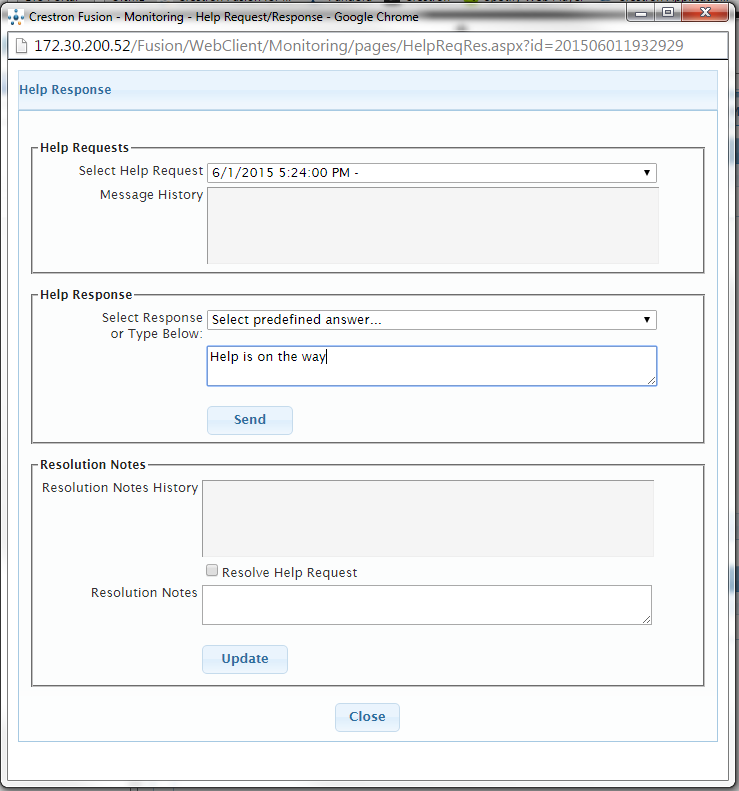
Resolved help requests are removed from the list of pending help requests. The icon of the room in the Room tree and the count of pending help requests in the Fusion Header tab are updated.
As each help request that comes in Crestron Fusion® is logged, together with any responses and resolutions, a Help Request report can be created to track requests and resolutions by room over a period of time. The Help request report can be useful in determining which rooms generate the most help requests, what are the most common requests and resolutions, how long does it take on average to close a request, etc.