Creating Reports in Crestron Fusion®
Crestron Fusion®
can be configured to enable tracking and reporting of room and device
usage by time and date. By seeing which rooms get used most and how many
times equipment needs to be repaired or replaced each year, room and device
usage can be maximized.
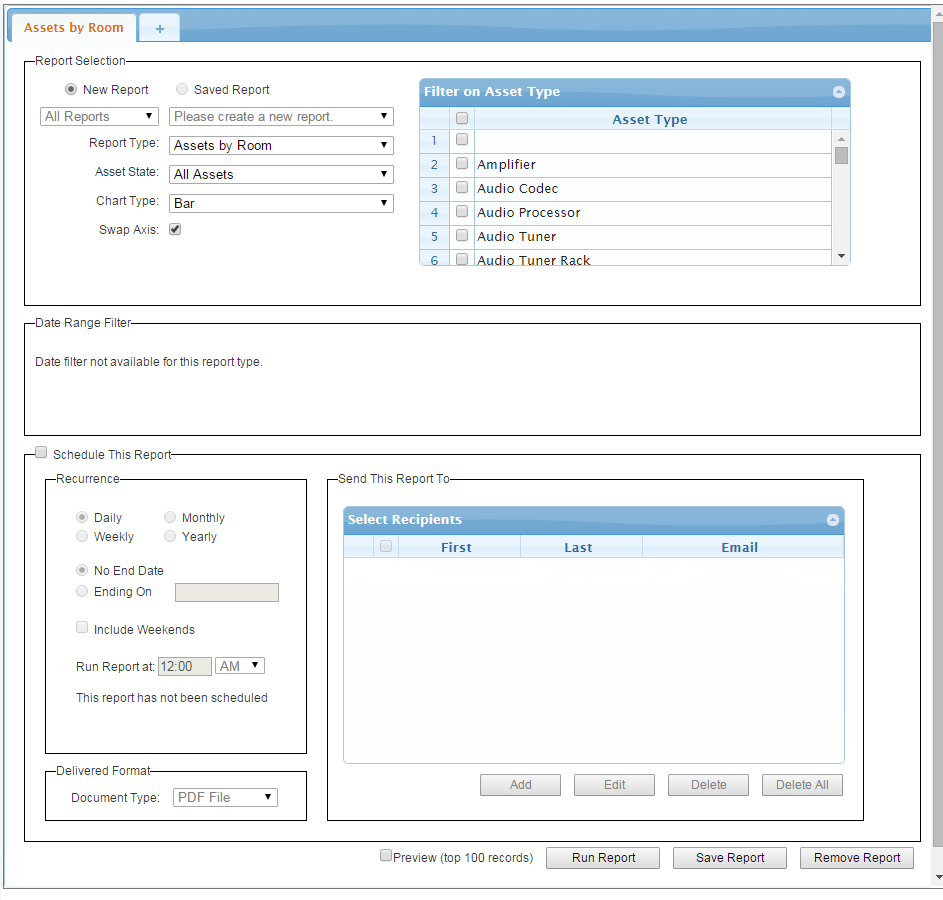
To create a report:
- Navigate to the Reports &
Analytics area of Crestron Fusion®
by clicking Open on the Fusion Header Tab and selecting Setup

- In the Report Selection pane
on the right select the type of report that you want to create from
the Report Type drop down
list.
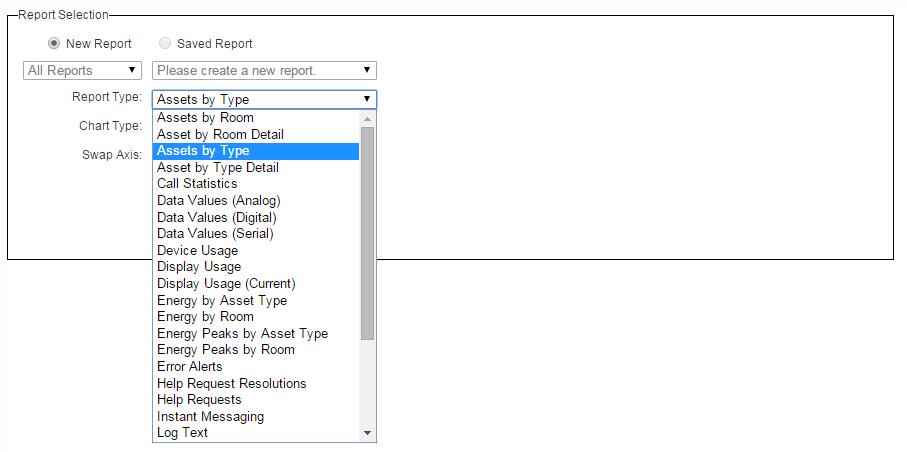
For example, choose Error
Alert s
if you want the study error alert patterns, or choose Display Usage to monitor the amount of
time a display has been used in order to schedule preventive
maintenance.
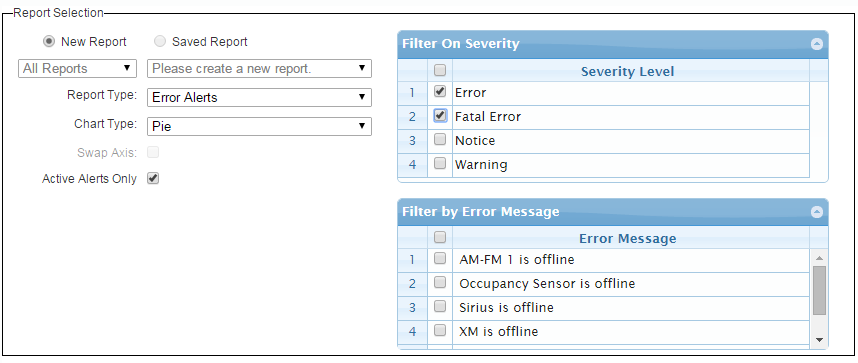
- Choose the right chart type for your data from the Chart
Type drop down field. Depending on your selection, the first
page of the report will summarize the data as a bar plot, pie chart,
or will not display graphical summary.
- Based on the selected report type the Report
Selection pane will be populated dynamically with additional
controls. Use the radio buttons, drop-down lists, check boxes, text
fields, etc. to specify the desired report parameters accordingly.
- Adjust the desired data range for the report in the Date
Range Filter pane if available. Some type of reports may not
require date filter.
- Select Schedule This Report
check box to specify that the report will be run at a scheduled time
or day or re-occur at specified period of time. Use the controls
in this section to adjust the desired scheduling parameters accordingly.
If you choose to create a schedule for the report you can also adjust
the following parameters:
-
In the
Delivered Format pane, click
the drop-down list to select the file type in which the report document
will be saved. Available document report types are: .CSV File, .PDF
File or Excel Format.
-
In Send This Report pane, add a recipient
by clicking the Add button
and providing First Name, Last Name, and Email Address
- or-
Select from available recipients which will have the report e-mailed
to them.
- Click the Run Report button
to create the report. The report can be previewed in the Report Viewer
and printer or exported to a selected document format.
Click Save Report to save it,
or Remove Report to delete
selected report.
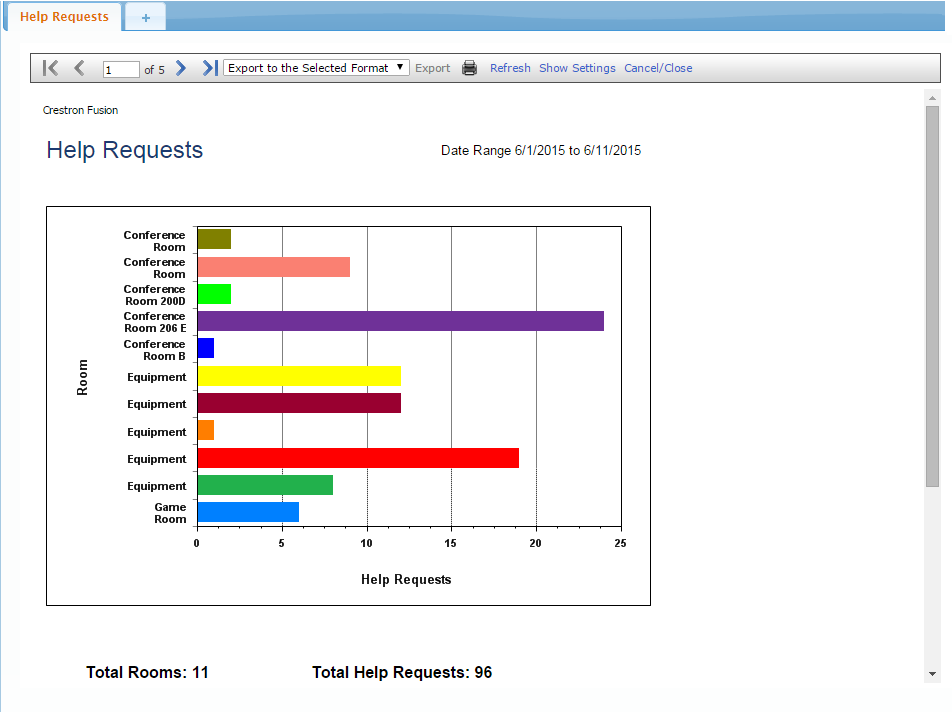
Sample Help Requests
Report Summary Page