Import Touch Screen Design from VT Pro-e®
Crestron Studio® provides
functionality for importing your favorite VT Pro-e® touch screen designs
directly into a Crestron Studio® system. To
be imported into Crestron Studio®, the VT Pro-e® project
must be compiled to produce a .vtz
or .c3p file and
it must represent a Smart Graphics™
touch screen (non-Smart Graphics™
touch screen(s) can be saved as Smart Graphics™
touch screens by using VT Pro-e® version 5.2 or later).
Note
that you MUST
use the VT Pro-e®
version 5.01.15.04 or later to compile Smart Graphics™ Projects
into a .vtz file for import into
Crestron Studio™.
Smart Graphics™ Projects
compiled in earlier versions of VT Pro-e® may not import properly.
NOTE:
If you wish to import a design created for a XPanel 2.0 Smart Graphics™ (Web)
please refer to Import
Design for XPanel 2.0 Smart Graphics™ (Web).
IMPORTANT:
Before
importing a design from VT Pro-e® make sure that you have saved any existing
designs on the touch screen by using the Crestron Studio® Export
Design functionality
because the
imported design will
completely replace any existing design on your touch screen!
To import a VT Pro-e® touch
screen design do the following:
Open System
Designer.
Expand the System
Tree and find the touch screen where you wish to import the
VT Pro-e® design project
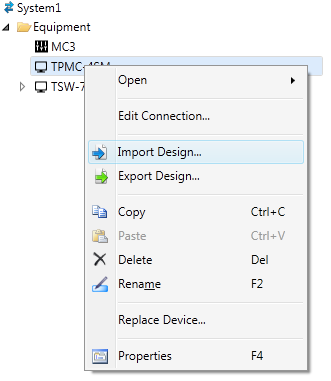
Select the touch screen and right-click
on it. (Note: The selected touch screen where the design will be
imported, has to be exactly the same type and model as the touch screen
used in VT Pro®
to create the design!)
In the menu that opens choose Import Design...
The Select
File to Import dialog opens:
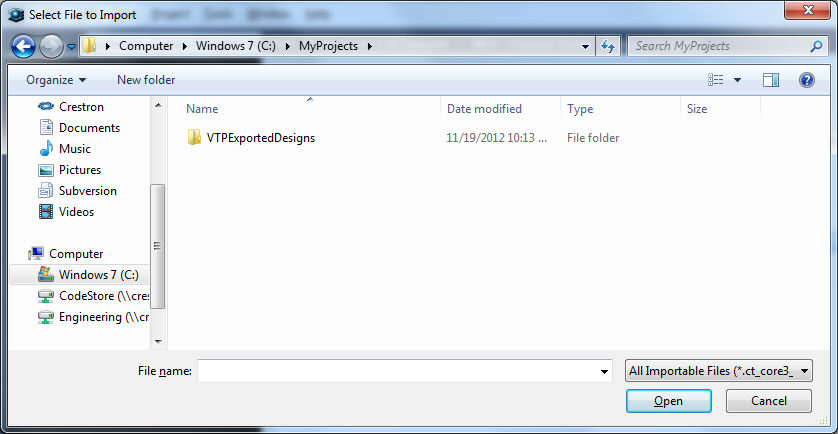
Change the file extension to match
the extension of a VT Pro-e® Compiled
file (.vtz, .c3p).
 or
or 
Note that the default file extension is set to All
Importable Files.
Navigate to the file containing the
desired design to import.
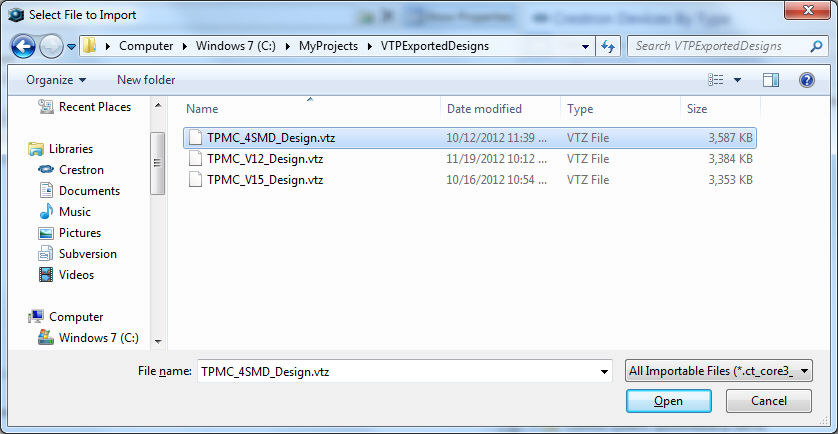
Each time an importable file is selected, it is added to the File Name drop-down
list. This makes it convenient to recall recently imported files without
need to search for them.
Click Open
IMPORTANT: When importing VT
Pro-e® projects that use multiple themes, notice that in Crestron Studio® the project
theme will always be set as Theme 0, no matter that in VT Pro-e® it may
have been assigned a different number, thus potentially causing problems
if importing legacy VT Pro-e projects and SIMPL programs. To remedy this,
navigate to Program Designer and manually adjust the theme number of the
project theme (set it to 0) in your legacy program.