Replace Device
In previous versions of Crestron Studio®
(1.5x and earlier), very few limitations were placed on which devices
may be substituted for an existing device. However, starting with Crestron Studio® v. 1.6x the
replacement devices will be constrained to only a limited subset of devices
compatible with the original device.
 Would I still be able to
replace any device in the latest version of Crestron Studio®?
Would I still be able to
replace any device in the latest version of Crestron Studio®?
 You would be able to replace most devices either with a compatible device
(often that would be a device of the same type and subtype as the original),
or if the device is not compatible with other devices, you would be able
the replace the device with itself, if needed.
You would be able to replace most devices either with a compatible device
(often that would be a device of the same type and subtype as the original),
or if the device is not compatible with other devices, you would be able
the replace the device with itself, if needed.
To use the
Replace Device functionality of Crestron Studio®:
Right-click the device in
the System Tree.
Click Replace... Note that only ONE device can
be replaced at a time!
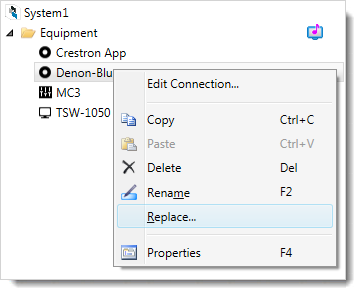
The Product Browser
goes into a Replace
Device Mode and a list of available replacement devices (in
general, replacement devices will be of the same device type/subtype
as the original device) is shown:
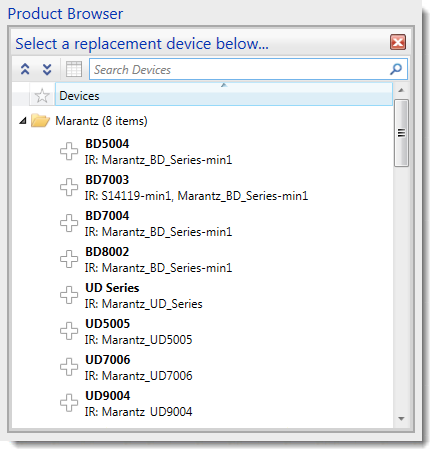
The list of replacement devices can be navigated using any of the following
methods:
- Pressing the
 and
and  keys
keys
- Using the scrollbar
- Using the mouse scroll wheel
Choose a replacement device by:
Selecting the device and double clicking on it, or pressing
the  key from the keyboard.
Pointing to the Plus Sign  icon to the left of the device's Model Name so it turns green
 and clicking on it.
In some cases a Replace
Device Summary dialog may be displayed listing errors, warnings,
or actions etc. for you to review before the replacement operation
can commence. For example, the new device may not have the same reserved
joins, etc. Some actions may require your input, for example, selecting
a gateway.

Carefully review any errors/warnings (you can also click  to save detailed information
about the displayed errors/warnings) and then press:
to save detailed information
about the displayed errors/warnings) and then press:
While the replacement operation is in progress a dialog
briefly appears indicating that the device is being analyzed and replaced
by the new one:
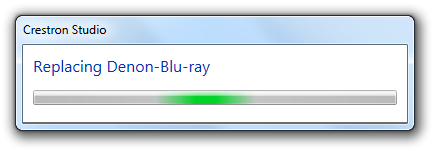
Note that the new/replacement device
will retain the device properties of the original device, including
the device/its name and location, IP information, etc.
Attempts will be made to preserve the information contained in any
Designer for the device that is being replaced, including programming
through Program Designer or Programming Editor, or a touch screen
design through Touch Screen Designer.
For generated systems any existing macro-programming will be copied.
Note that source routes will not change if the new device has the
same connectors as the original. Signals from cues that exist on both
the original and replacement device symbols will be connected to the
symbols of the replacement device.
Note: Copying programming by cue name or event name can fail because
the cue names do not follow a naming convention, and there is no way
to know how to copy the programming. To avoid this try replacing the
device manually.
NOTE: Any manual programming
on the original device that is not connected to a visual programming
will be lost! If an extender is manually added it will not be "copied"
into the replacement device!
If the new device does not support device behaviors, the Behaviors
property will be hidden and Crestron Studio®
will remove any behavior-related generated programming.
If the new device supports device behaviors, the Behaviors property
will be visible and device behaviors will enabled and behavior programming
added on the replacement device as long as the requirements for that
device behavior are met.
The Replace Device
Mode will be terminated automatically after the device replacement
operation has been completed or you can exit or cancel it manually at
any time by doing any of the following:
Press the  button to return to the Product Browser.
Navigate away from the screen
Select another device in the System Tree
Press the  key.
key.
Are there best practices that I should know about when replacing devices?
It's worth noting that if you are not using custom programming, sometimes
it would be better to delete the original device, re-add the new device
and let Crestron Studio®
generate the new pages.
Would I be able to replace sources, displays, AVRs, touch screens and
remotes in my project? Which are their compatible replacement devices?
Yes, sources, displays, AVRs, touch screens and remotes are replaceable.
See below for compatible replacements by device type:
Original Device |
Valid Replacement Device |
ADMS-G2 |
ADMS-G2 |
Air Media AM-100/AM-101 |
Air Media AM-100/AM-101 |
Apple TV/ Apple TV (1st, 2nd, 3rd or 4th generation) |
Apple TV/ Apple TV (1st, 2nd, 3rd or 4th generation)
Roku Digital Video Server XS/Roku Digital Video Server
XD/S
Set Top Box |
Roku Digital Video Server XS/
Roku Digital Video Server XD/S |
Apple TV/ Apple TV (1st, 2nd, 3rd or 4th generation)
Roku Digital Video Server XS/Roku Digital Video Server
XD/S
Set Top Box |
Blu ray player |
any device of type/subtype DVD/Blu-ray |
CD Disc/Changer/Player |
any device of the following types/ubtypes: CD/CD
Changer, CD/Jukebox, CD/Single CD, CD/CD Transport |
DVD |
any device of type DVD/DVD |
DVR |
any device of type DVR/DVR |
CEN-ISERVER, CEN-IDOCV, ATC-AUDIONET |
CEN-ISERVER /CEN-IDOCV/ ATC-AUDIONET
CEN-NSP1
Autonomic MMS-2A, Autonomic MMS-1e, Autonomic MMS-2,
Autonomic MMS-5A
C2N-TXM, C2N-TFM w/C2N-TAMWX
Sonos Connect |
C2N-TXM, C2N-TFM w/C2N-TAMWX |
CEN-ISERVER /CEN-IDOCV/ ATC-AUDIONET
CEN-NSP1
Autonomic MMS-2A, Autonomic MMS-1e, Autonomic MMS-2,
Autonomic MMS-5A
C2N-TXM, C2N-TFM w/C2N-TAMWX
Sonos Connect |
Autonomic MMS-2A, Autonomic MMS-1e, Autonomic MMS-2,
Autonomic MMS-5A |
CEN-ISERVER /CEN-IDOCV/ ATC-AUDIONET
CEN-NSP1
Autonomic MMS-2A, Autonomic MMS-1e, Autonomic MMS-2,
Autonomic MMS-5A
C2N-TXM, C2N-TFM w/C2N-TAMWX
Sonos Connect |
Sonos Connect |
CEN-ISERVER /CEN-IDOCV/ ATC-AUDIONET
CEN-NSP1
Autonomic MMS-2A, Autonomic MMS-1e, Autonomic MMS-2,
Autonomic MMS-5A
C2N-TXM, C2N-TFM w/C2N-TAMWX
Sonos Connect |
Display - can be replaced
only with itself
AVR - can be replaced
only with itself
Remote - can be replaced
only with itself
Touch screen -consult
the table below for compatible touch screen replacements:
Original Touch Screen |
Valid Replacement Touch Screens |
CCS-UC-CODEC-100 |
CCS-UC-CODEC-100 |
CCS-UC-CODEC-200 |
not replaceable |
Crestron
App |
Any of the following:
|
DGE-2/DGE-100/DM-DGE-200-C |
Any of the following
|
FT
TS-600 |
Any of the following:
|
MLX-3 |
MLX-3 |
TPMC-3X
TPMC-4SM/TPMC-4SMD/TPMC-4SM-FD/TPMC-4SMD-FD
TPMC-9/TPMC-9L
TPMC-V12/TPMC-V15 |
Any of the following:
|
TSR-302 |
TSR-302 |
TS-1542/TS-1542-C |
Any of the following:
|
TSS-752 |
TSS-752 |
TST-600/TST-602/TST-902 |
TST-600/TST-602/TST-902 |
TSW
550/552/560
TSW
730/732
TSW-750/752/760
TSW-1050/1052/1060 |
Any of the following:
|
XPanel
2.0 Smart Graphics/XPanel 2.0 Smart Graphics (Web) |
Any of the following:
|
Am I allowed to replace
controlled devices?
Yes. After the replace operation, the replacement device becomes one of
the touch screen’s controlled devices and all subpage programming from
the original device would target the new device, where possible.
Note that pages generated for the original device will not be removed
if the new device is of a different type.
After initiating page re-generation for the new device, new device pages
will be generated and all custom programming will be lost.
Is it possible to replace
user devices?
Yes, user devices can be replaced with other user or third party devices
of a compatible device type or subtype and vice versa. For example, you
can replace user device of Blu-ray type with a Samsung Blu-ray player
and vice versa.
 to replace the
device
to replace the
device to create
a
to create
a  to cancel the
replacement operation
to cancel the
replacement operation