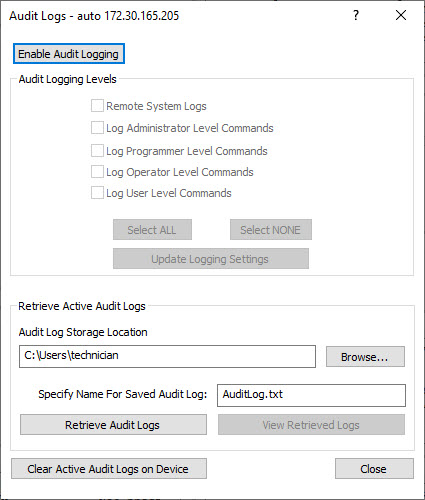
Use this function to enable and to disable audit logging of Administrator, Programmer, Operator and User Level Commands.
To turn on audit logging
Click the Enable Audit Logging button.
In the Audit Logging Levels group box, select the check boxes of the individual command levels to be logged.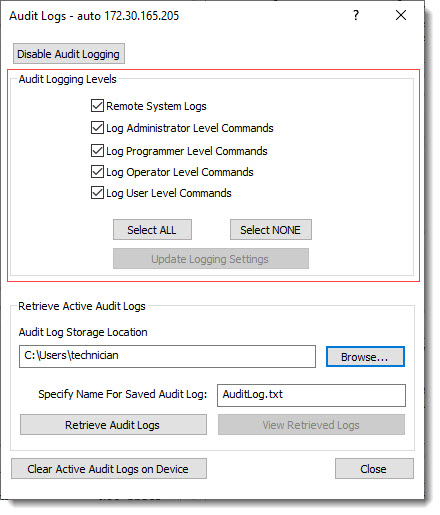
Click the Select ALL button to select Remote System Logs and log all commands levels: Administrator, Programmer, Operator and User.
Notes:
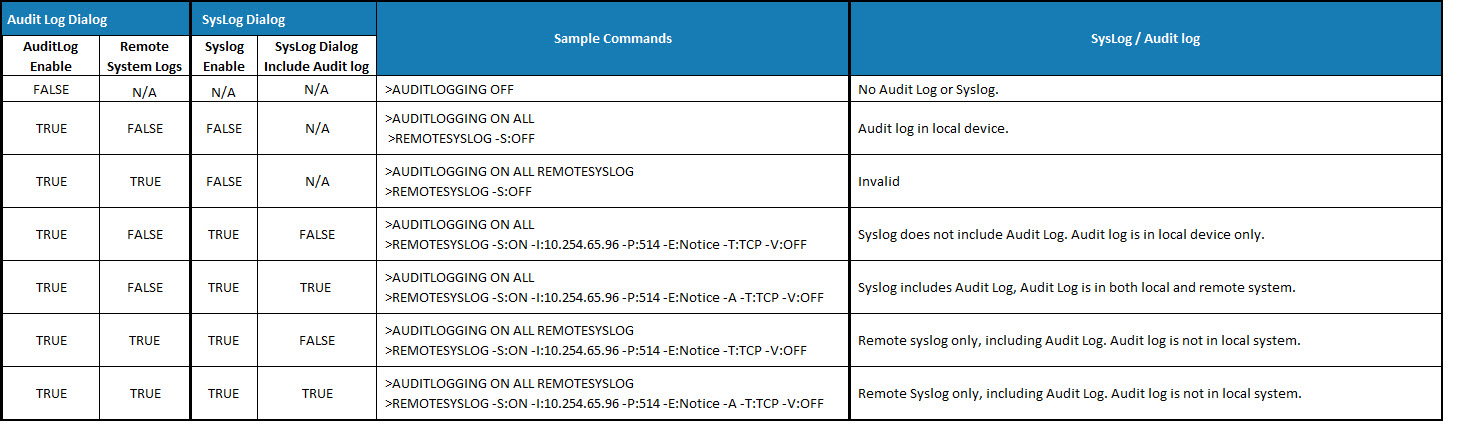
Click the Select NONE button to de-select and stop logging all command levels.
Click the Update Logging Levels button to apply the selections and begin audit logging after the Audit Logs... dialog box is closed.
To retrieve and view audit logs
To change the Audit Log Storage file location, click on the Browse... button in the Retrieve Active Audit Logs group box. Drill to the desired file folder [location] and click the OK button.
Default location: C:\Program Files (x86)\Crestron\Toobox.
To change the audit log file name, type new name in the Specify Name For Saved Audit text box.
Default name: AuditLog.txt.
To retrieve and view the audit log, click the Retrieve Audit Logs button and then click the View Last Retrieved Logs button.
To clear audit logs
Click on the Clear Active Audit Logs button.
To turn off audit logging
Click the Disable Audit Logging button at the top of the Audit Logs... dialog box