Duplicate Device Programming
Duplicate Device Programming
allows the user to select a source device and then duplicate its device
hierarchy, and copy its programming to a target device. Starting with
Device Database version 82.05.00, or higher, the target device does not
need to be of the same type and model as the source device, but merely
the source and target device have to be recognized by the Device Database
(Device Database version 82.05.00, or higher, is required) as compatible
devices.
Devices that are defined as compatible include several types of touch
screens, DM endpoints, DM Switchers, etc. For example, the Duplicate Programming
feature can be used to duplicate all programming from TSW-1050 to TSW-1052.
Note that the top-level target device must be added to the program prior
to using this feature.
How to Use the Duplicate Device Programming
Feature
-
In
the Programming Tree, select and program a top-level device and any
of its child devices, if applicable. This device is considered the
source device.
-
From
the Programming Tree, select the source device, which needs to be
duplicated.
-
With
the source device selected, right-click and drag the source device
onto a compatible target device and click Duplicate
Device Programming.

NOTE:Duplicate
Device Programming will
be displayed in the context menu only when the source and target devices
are deemed compatible by the Device Database. If the source and target
device are not deemed compatible, the Duplicate Device Programming
option WILL NOT be shown in the context menu.
-
If
the target device (or any of its child devices) already has programming,
a dialog box will present a Warning message that proceeding any further
will delete existing programming on the source device and its child
devices.

Click Yes to duplicate the
device programming.
Click No to cancel the operation.
-
(optional)
Type a prefix, a suffix, or a string to be replaced, select the applicable
Add Signal Prefix, Add
Signal Suffix or Replace string
in signal name check boxes and click OK.

If prefix, suffix or replacement string is provided SIMPL will apply
it to the signals on the target device. For example, if the signals
on the source device were named 'signal_1', 'signal_2', 'signal_3',
etc., after selecting Add Signal
Prefix check box and entering a signal prefix '[TSW-1052]',
the signals on the target device will be named '[TSW-1052]signal_1',
'[TSW-1052]signal_2', '[TSW-1052]signal_3', etc.
Selecting Apply prefix/suffix/replace
string to signals on target symbols not being duplicated check
box when any of the Add Signal Prefix,
Add Signal Suffix or Replace string in signal name check
boxes is checked will apply the corresponding prefix, suffix or replacement
string to any child devices of the target which is not compatible
to the source device and as such will not be a part of the duplicate
programming action, i.e. slave devices on the target that did not
exist on the source, etc.
-
Child
devices and their associated symbols from the source device will be
added to the target device. If the target device already had fixed
children devices, they will be unchanged; any non-fixed children devices
will be replaced to match the one on the source device.
-
All
programming for the source device (and its children) will be copied
to the target device (and its children). If the target device already
had existing programming, this programming will be deleted and replaced
with the source device’s programming on its associated symbol(s).
Duplicate Device Programming when Logic Modules are involved
For Touch screens with GUI Extenders that require supporting logic modules (providing CRPC support)
- A new instance of each required logic module will be added, and linked to the target GUI Extender (see Diagram 1 below).
- This new instance will be added to the Smart Graphics Modules folder under the Logic folder.
- A comment will be added to each logic module that indicates which touch screen and extender the module is associated with.
- These modules can be moved from the Smart Graphics Modules folder.
- Programming from the associated source GUI Extender will be copied to the new target GUI Extender.
- Programming from the associated source logic module will be copied to the associated target logic module.
Programming Notes for the user when GUI Extender logic modules are copied:
- The modules required by GUI Extenders provide required CRPC support. Without these modules, and the connected programming to the GUI Extender, the GUI control may not function properly.
- These modules are programmed to only support 1 GUI Extender, per instance.
- To avoid signal jamming, update the programming between the target GUI Extender, and the target module (see Diagram 2 below).
Diagram 1 - Two GUI Extenders, each with an instance of the associated logic module after the Duplicate Device Programming action:
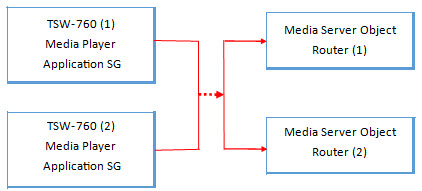
Diagram 2 - Two GUI Extenders, each with an instance of the associated logic module each with device specific programming and each with programming linked only to their associated device:

For Devices with optional Logic Modules (e.g., thermostats with scheduler modules, etc)
- If the target device was not added to the program with the optional module, SIMPL will not add a new instance during the Duplicate Device Programming action.
- Programming on the source and target device will be the same, thus signals on both source and target device will be routed to the same module instance (see Diagram 3 below).
- If the target device has the exact same optional module, SIMPL will copy the programming from the source module to the existing target module.
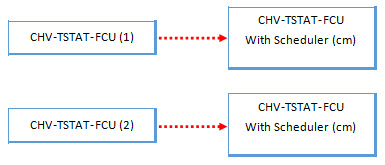
- To avoid signal jamming, the user should update the programming between the target module, and the associated target device (see Diagram 4 below).
- If the user does not wish for this scenario, to avoid jammed signals, the user should add an instance of the logic module and connect it to the target device as appropriate (see diagram 2 below).
To do this:
- Go to the Logic Folder and find the source logic module.
- Make a copy of that module and update the programming on the new instance, and the target device, such that the programming per each device is connected to the appropriate module instance.
Diagram 3 - Two devices, with supporting logic module, after the Duplicate Device Programming action:
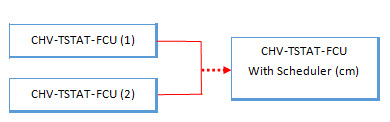
Diagram 4 - Two devices, each with an instance of the same optional logic module, each with device specific programming: