Enable Multifactor Authentication
Multifactor authentication can also be enabled for Azure® Active Directory® servuce users on an individual basis. This authentication method is optional.
To enable multifactor authentication:
- Log in to the Azure Active Directory portal.
- Navigate to Azure Active Directory > MFA.
- Under Configure, select Additional cloud-based MFA settings.
- Select users in the multi-factor authentication dialog box that is displayed.
- Select the check box next to the user(s) that require multifactor authentication.
- Select Enable.
- Select enable multi-factor auth in the message window that is displayed.
- A success message is displayed. Select Close to exit the message window.
Azure Active Directory Page – MFA

Multi-factor Authentication Page

multi-factor authentication Dialog Box

multi-factor authentication – users Dialog Box

Enable Multifactor Authentication Message Window

Sign in with Multifactor Authentication
Once multifactor authentication is enabled for an Azure Active Directory user. The user must use the following procedure to log on to the Crestron Fusion® software server.
- Navigate to the organization’s Crestron Fusion server address (for example, “https://yourserver.crestronfusion.com/Fusion/WebClient/default.aspx”). The user is redirected to a Microsoft login page.
- Enter a username in the Sign in text field.
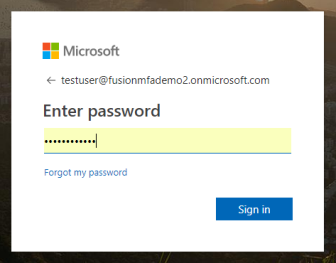
- Enter the user password in the Enter password text field.
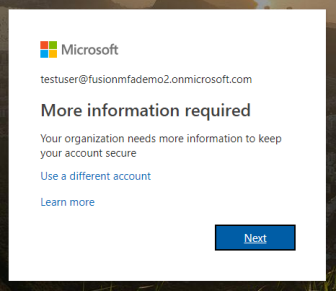
- Select Sign in. A message window stating that more information is required is displayed.
- Select Next. An Additional security verification page is displayed.
Microsoft Login Page – Sign in
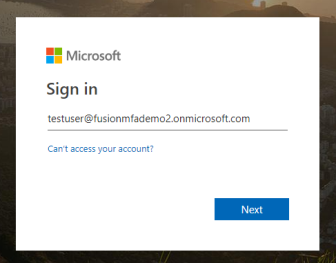
Microsoft Login Page – Sign in
More information required Message Window
Additional security verification Page

To complete multifactor authentication, users can choose to provide additional verification via phone or the Microsoft Authenticator app.
Phone Verification
To verify user credentials via phone:
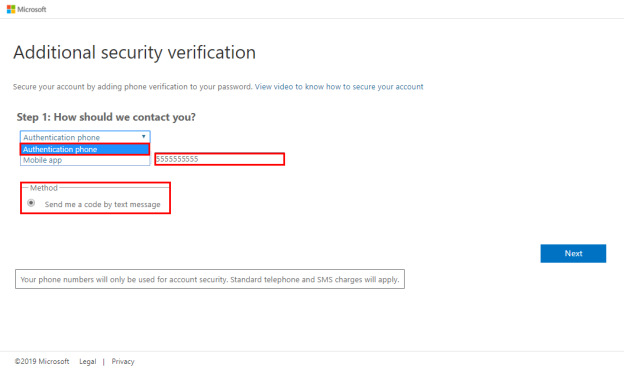
- Choose the Authentication phone contact method:
- Select Authentication phone from the drop-down menu.
- Enter the user’s mobile phone number in the text field next to the drop-down menu.
- Select the Send me a code by text message radio button.
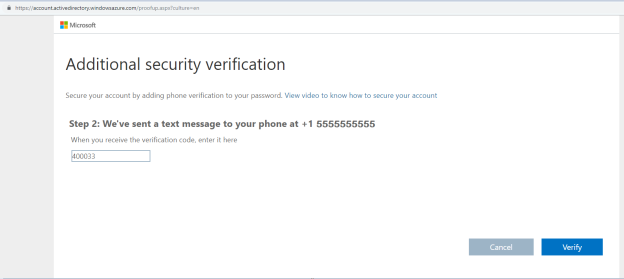
- Select Next. A message is displayed stating that a verification code has been sent to the mobile phone number provided.
- Enter the verification code in the text field, and then select Verify.
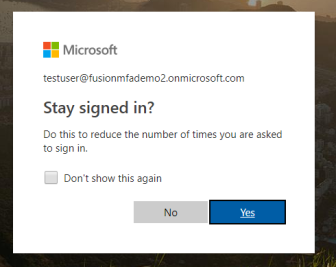
- Once the code is verified, select Done. A message window asking whether the user account should stay signed into the Crestron Fusion server is displayed.
- Select Yes or No. The user is now redirected to the main Crestron Fusion page regardless of the selection.
Additional security verification Page
Additional security verification Page – Verification Code
Stay signed in? Message Window
Crestron Fusion Page

Mobile App Verification
To verify user credentials via the Microsoft Authenticator app:
NOTE: This procedure requires the Microsoft Authenticator app to be installed on a mobile device. Download the Microsoft Authenticator app from the Google Play® online store (for Android® OS devices) or from the App Store® online store (for iOS® devices)
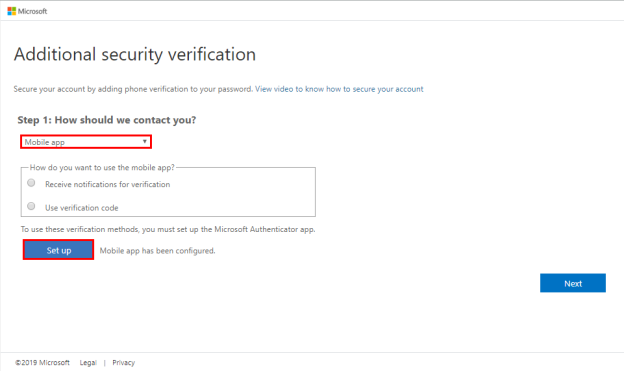
- Choose the Mobile app contact method.
- Select Set Up.
- Follow the instructions presented in the dialog box to add the user account to the Microsoft Authenticator app.
- Select Next. The Additional security verification page displays a “Checking Activation” status next to the Set up button.
- Select one of the following verification methods to use for the mobile app:
- Select Receive notifications for verification to receive notifications in the Microsoft Authenticator app to verify login.
- Select Use verification code to use a verification code for login.
- Select Next. The remaining procedures differ depending on the selected verification method.
Additional security verification Page – Mobile App
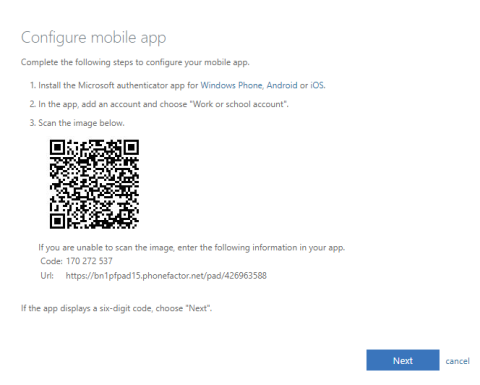
After the Azure portal retrieves the information necessary for configuration, a Configure Mobile App dialog box is displayed.
Crestron mobile app Dialog Box
If the user is added successfully, the app displays a six-digit code underneath the user account.
Microsoft Authenticator App – Accounts
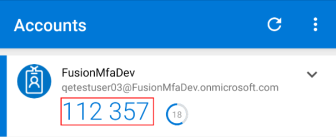
Microsoft Authenticator App – Accounts
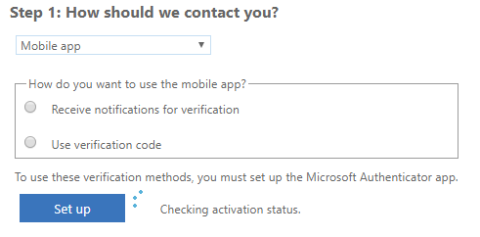
The account is successfully set up once a “Mobile app has been configured for notifications and verification codes” message is displayed and the Set up button becomes grayed out.
Microsoft Authenticator App – Accounts

Receive Notifications for Verification
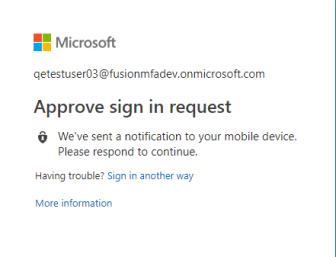
If Receive notifications for verification was selected, an Approve sign-in? notification is sent to the Microsoft Authenticator app.
Approve sign-in? Notification
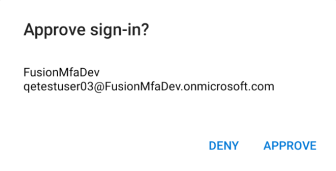
- Select APPROVE in the app.
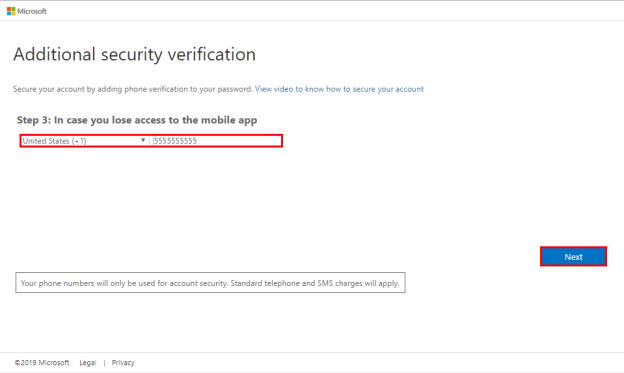
- On the Additional security verification page, enter a security phone number.
- Select Next.
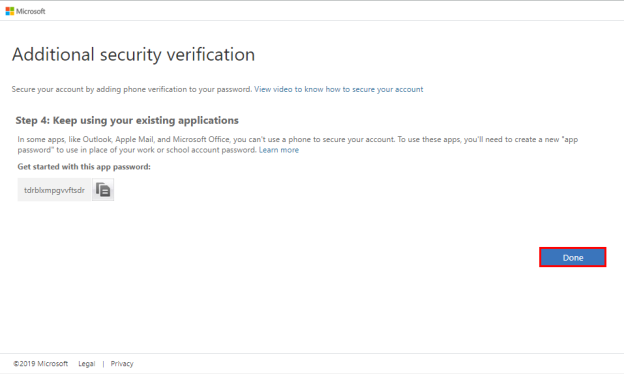
- Select Done on the next page.
- Select Yes or No. The user is now redirected to the main Crestron Fusion page.
Additional security verification Page – Phone Verification
Additional security verification Page – Existing Applications
Once the account is verified, a message window asking whether the user account should stay signed into the Crestron Fusion server is displayed.
Stay signed in? Message Window
Crestron Fusion Page
Use Verification Code
If Use verification code was selected, the six-digit verification code created in step 3 of “Mobile App Verification” is used for authentication.
- Navigate to the Accounts tab in the Microsoft Authenticator app.
- Copy the six-digit code listed underneath the appropriate user account.
- On the Additional security verification page, enter the verification code from the app in the provided text field.
- Once the account is verified, select Done. A message window asking whether the user account should stay signed into the Crestron Fusion server is displayed.
- Select Yes or No. The user is now redirected to the main Crestron Fusion page regardless of the selection.
Microsoft Authenticator App – Accounts
Additional security verification Page – Verification Code

Stay signed in? Message Window
Crestron Fusion Page
Subsequent Logins
Depending on the verification method selected, the following information is required for subsequent logins into the Crestron Fusion server through Azure Active Directory.
- If a verification code was selected, enter the verification code shown under the user account in the Microsoft Authenticator app into the provided text field, and then select Verify.
- If receiving notifications for verification was selected, respond to the notification in the Microsoft Authenticator app to continue to log in.
Enter Code Message Window
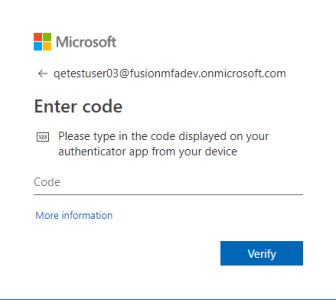
Enter Code Message Window