Symbol Discover
Symbol Discover is used when adding a room or a node. A room is created for every symbol encountered in the processor during the add process. When Symbol Discover is used when adding a node, a node is created for every symbol.
- Select a node in the Rooms tab on the left or select a child node displayed in the main grid.
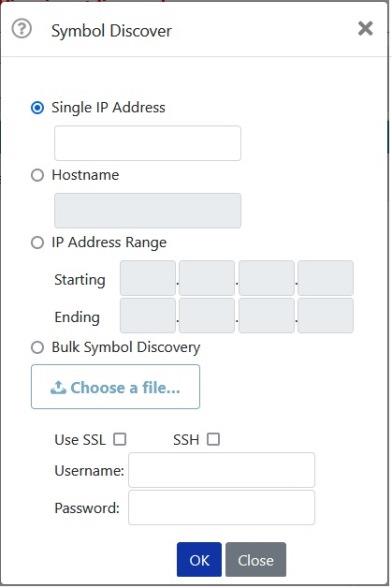
- Select ]Symbol Discover ]on the tool bar. The Symbol Discover pop‑up window is displayed.
- To discover a symbol, choose and enter one of the following options:
- Single IP Address
- Hostname
- IP Addresses Range
- Bulk Symbol Discovery: Upload a text file that contains a collection of IP addresses and hostnames.
NOTES:
For example, the text file must contain a single IP address or a host name on each line ending with <CR><LF> tag as follows:
HostName1<CR><LF>
10.10.5.2<CR><LF>
ServerName3<CR><LF>
The discovery duration depends on the number of devices in the file as shown below:
No. of IP address Time of execution 50 30 min 100 1 hr 150 1 hr 30 min 200 2 hr 500 5 hr Ensure all devices listed in the bulk discovery file has same login credentials.
Do not close the browser during the bulk discovery process.
- For this example, the Symbol Discover process runs on a range of IP Addresses known to have the desired symbols. Select the IP Address Range radio button and enter a starting and ending range of IP addresses.
- Select OK to run the discovery.
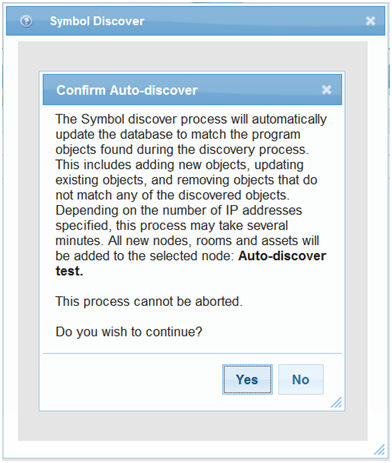
- Select Yes to start the Symbol Discovery process. Crestron Fusion will start searching for symbols within the specified IP Address range. The following pop‑up window will be displayed.
- Select Close to dismiss the Symbol Discover pop‑up.
When you select OK, the following dialog box will open.
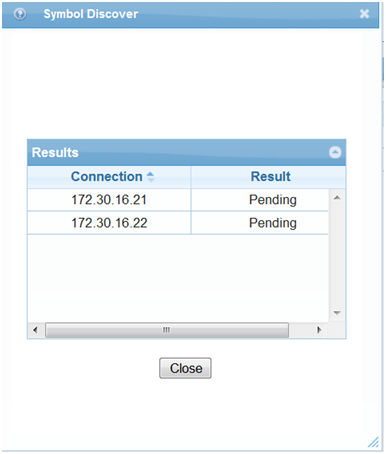
As Symbol Discover searches, the Result field will display Pending. As it progresses, the Result field will be updated:

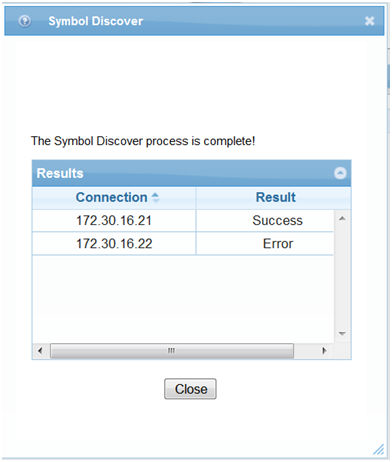
When the process completes, the fields will be updated as shown below.