Room Types
The Room Types Objects allows you to categorize your rooms by a common set of names that can be used with Add Room and Edit Room (for example, Auditorium, Boardroom, Video Conference Room, an so forth).
Add A Room Type
Click the Setup tab, and then select the bottom left‑hand Objects tab to display the Objects tree.

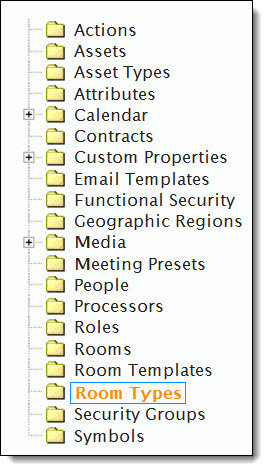
In the Objects tree, select the Room Types object.
In the left‑hand Setup-Room Type pane, click the + Add button.

In the Add ‑ Room Type window, enter the Room Type's Name and Description in the respective text fields.

Click the Save & Close button.
Edit A Room Type
- In the left‑hand Setup ‑ Room Type pane, select applicable room type's checkbox in the Room Type table.
- Click the Edit button.
- In Edit ‑ Room Type window, edit the room type's Name and Description accordingly.
- Click the Save & Close button.


Assign A Room Type
- Click the Setup tab and then select the bottom left‑hand Rooms tab to display the Room tree.
- Select the applicable existing Room from the Room tree and click the Edit button. Otherwise, click the + Add button to add a Room in the Room tree as applicable.
- In the Edit Room or Add Room window, click the Room Details tab.
- At the bottom of respective window, click the Room Type drop‑down and select the Room Type from the list.
- Click the Save & Close button.

Alternatively, select the Objects tab and click Rooms, then select the applicable Room from the grid and edit it accordingly.
