Post-Processings
Post processing provides a way to watermark or bookmark your media files for playback in the Crestron Media Player.
You can:
Add a Post Processing
- In the Media folder, select the Post‑Processings folder.
- Select Add on the toolbar.
- When the Add ‑ Post Processing dialog box opens, select New in the Select Post‑Processing field if it is not already selected.
- Fill in the Name and Description fields in the Post Processing Details section. Note that fields with a red asterisk are required.
- In the Watermark section, select the type of watermark from the Type drop‑down menu. The options are None, Text, and Image. An example of a text watermark would be basic copyright information. An example of an image watermark would be a company or school logo.
- If you select Text from the Type drop‑down menu, the Text field below it will become active. Enter the text you wish to display as a watermark in this field.
- If you select Image from the Type drop‑down menu, the Image URL field below it will become active. Enter the path (including the image file name) to the image you wish to display as a watermark. This image may be on a page on your website, or it may be on your server. Once you have entered the URL or path to the watermark image, it may be viewed by selecting the View link at the end of the Image URL field.
- Select where on the media you want the watermark to appear from the Position drop‑down menu. The options are Top Left, Top Center, Top Right, Middle Left, Middle Center, Middle Right, Bottom Left, Bottom Center, and Bottom Right.
- Enter a number into the text field in the Bookmarking section. The number you enter will be the number of minutes between bookmarks in the media file.
- Select Save & Close to commit your settings.


Edit a Post Processing
- In the Media folder, select the Post‑Processings folder.
- Select an existing Post Processing and select Edit on the toolbar.
- When the Edit ‑ Post Processing dialog box opens, the Select Post-Processing field will be disabled.
- Make the desired changes to the Name and Description fields.
- Make desired changes to the drop‑down menus and text fields in the Watermark section.
- Change the number of minutes between bookmarks in the Bookmarking section as required.
- Select Save & Close to commit your changes and close the dialog box.

Delete a Post Processing
- In the Media folder, select the Post‑Processings folder.
- Select an existing Post Processing by selecting its check box and then selecting Delete.
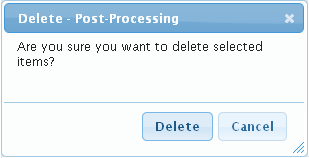
- When the Delete - Post Processing dialog opens, select Delete to delete the Post Processing.