Configure Crestron Fusion Rooms for Exchange Online
As of the 9.1 version of Crestron Fusion® software, rooms with mailboxes in Exchange Online are supported. This topic describes the steps needed to set up such a room, as well as the required configurations parameter in Crestron Fusion for this support. This support comes with some limitations:
- While the new feature has been tested with BPOS (Business Productivity Online Standard), the Office 365® software predecessor, that technology is being retired by Microsoft, so it is not recommended to use rooms with a BPOS mailbox.
- Rooms with Exchange Online mailboxes cannot receive push notifications from Exchange Web Services because a firewall would likely block inbound connections. This means that Crestron Fusion must do polling of each room’s calendar on a configurable interval (default: 3 minutes). This will add to Crestron Fusion and Exchange overhead.
- All rooms using Exchange Web Services (EWS) as their server access type should be either hosted on Exchange Online or use an on‑premises Exchange server. In other words, you cannot mix hosted and nonhosted calendars with the current support.
- All rooms using Exchange Web Services must contain the access credentials (userid and password) in the room definition. In other words, the credentials assigned to the Crestron Fusion Schedule and Groupware services cannot be used.
To set up a room with an Exchange Online calendar:
- Add the rooms as you normally would via the Crestron Fusion Setup Web Client. Select MS Exchange: EWS as the Server Access method. The Calendar Email Address and Username should both be the room’s SMTP address. Enter the password for the room. Leave the Domain field blank. An example configuration is shown below.
- If you are using room calendars hosted in Exchange Online, you must set a new configuration variable in the Configuration Web Client. This variable is contained on the All Config page, not on any of the standard tabs. To reach this page, log into the Configuration Web Client and select the All Config icon at the top right of the screen.
- Once this page is loaded, scroll down until you see the bit variable EWSIsHosted in the Name column. If it is there, it should look like this:
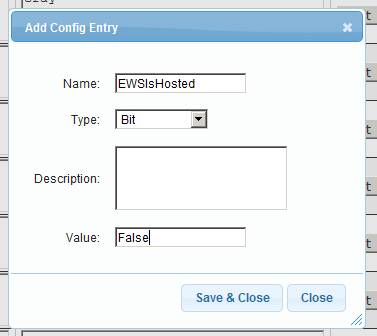
- If EWSIsHosted is not listed, add it as follows:
- Select Add at the top (or bottom) of the All Config page.
- Fill in the Add Config Entry window. Enter an appropriate description and a Value of True or False, or 1 or 0.
- Select Save & Close to create the variable.
- Scroll to the EWSIsHosted row.
- Select Edit at the right side of the row. This will enable the Value column to be changed. (This will also reveal Save and Cancel controls in place of Edit.)
- For a site where rooms which are hosted in Exchange Online, set the Value column to True (case does not matter). For a site where rooms are stored in an on‑premises Exchange, set this to False.
- Select Save on the right side of the row.
- Restart all Crestron Fusion services.
- Issue an iisreset command on all servers where Crestron Fusion is installed.
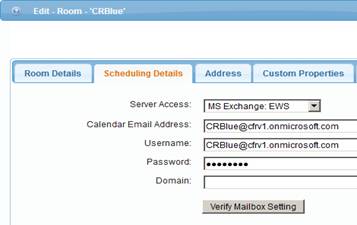
NOTE: You can use the Verify Mailbox Setting button to confirm access to the mailbox. However, on the Room Details tab, the Lookup Room Name button will not be able to search for an alias in Exchange Online, so all of this information must be provided manually.


Subsequent releases of Crestron Fusion may remove some of the limitations on Exchange Online support mentioned above. However, this current support will allow you the same capabilities you now have with on‑premises Exchange rooms: Add, Update, and Delete meetings, and so forth.
Debugging Problems with Active Directory
When using the Active Directory® service method, if the lookup fails, the Schedule or Groupware service logs will only report a general message such as “Autodiscovery could not be located.” In the process of doing AD, the Managed API method does report the steps it is taking, but the log level for the service must be set to DebugExtra in order to see these messages. Alternatively, the AD Tool needs to have the Detailed output box selected.