Add/Edit/Remove a Person
Adding a person to Crestron Fusion® software is the same as creating a new account. Adding a person to a room (technically, adding a person to a role for a given room) is taking a person already existing in Crestron Fusion and associating them with a role in that room.
You can:
Add a Person to Crestron Fusion
- Select the Objects tab in the tree view, and then click on the People folder.
- The People view opens on the right.
- Select Add to open the Add ‑ Person dialog box.
- In the User Details section, enter the information indicated by the titles of the individual text fields. Note that items associated with a red asterisk are required by the system.
- Select whether or not the person is active in the system by selecting or deselecting the Active check box.
- Specify the security group(s) for the new person by selecting the appropriate check boxes in the Security Groups section.
- Select Save & Close to commit your changes.


NOTE: If a user fails to correctly enter their name and password in the specified number of chances, they will be locked out of Crestron Fusion. The Unlock User button is provided to Crestron Fusion Administrators to reset the users password and unlock them, allowing them to access Crestron Fusion again.
Edit a Person in Crestron Fusion
- Select a person and then select Edit. The Edit PersonName dialog box opens.
- Make the changes required by your situation and then select Save & Close if you are satisfied with your changes.
- If you wish to deactivate the person in Crestron Fusion, deselect the Active checkbox, and then select Save & Close.
- If a user has been locked out of Crestron Fusion for not being able to successfully enter the correct username and/or password, the Password and Confirm Password fields will be present as well as the Unlock User button. The Crestron Fusion Administrator can then reset the user's password and allow the user back into Crestron Fusion.
NOTES:
Add a Person to a Room
Whether you are creating or editing a room, adding a person follows the same procedure.
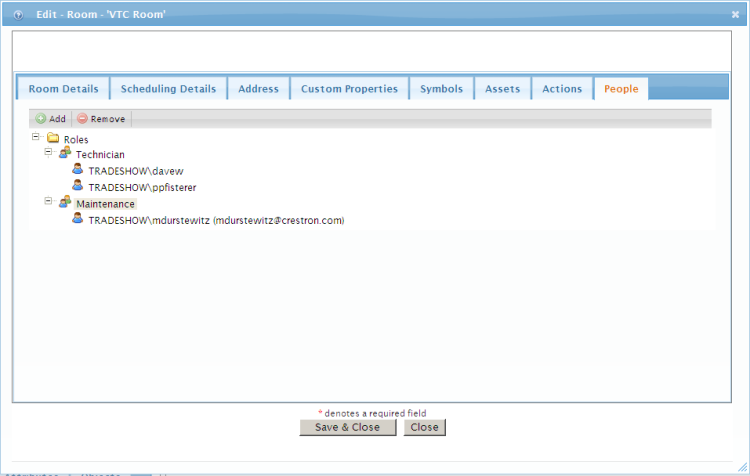
- To add a person to a room, navigate to the People tab of a new or existing room and click on the tree to expose all of the current roles and people.
- Select Add. The Add People to RoomName dialog box opens.
- Pick the role you would like to add your person to from the Pick a role drop‑down menu, and then pick the person(s) for that role by selecting the check boxes in the Pick people for the selected role section.
- Select Save & Close if you are satisfied with your choices. If you chose to accept your changes, the new role and person(s) will appear as shown in the following image.
- Select Save & Close to commit your changes.

Remove a Person from a Room
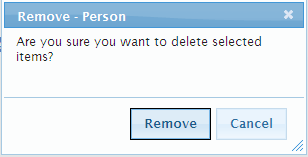
- Highlight the person or role you wish to remove and then select Remove. A message prompt will open, directing you to confirm your action.
- Select Remove to proceed.