RoomView Monitoring Overview
Select RoomView Monitoring in the Header Tab to open the double-paned RoomView Monitoring window. The left-hand pane is the Room Tree of rooms and nodes in the enterprise or organization. The tabbed right-hand RoomView allows for centralized room management and monitoring including the following:
- Monitoring room activity
- Interacting with and remotely controlling devices
- Respond to alerts and help requests

RoomView Monitoring Tabs

|
Crestron Fusion's default starting tab. The My RoomView tab displays a summary of rooms that have active help requests and error alerts. |
|
The Fusion Insite tab provides a three-dimensional, graphical depiction of a building; therefore, you can intuitively and easily interpret, monitor, and control room status and area status. |

|
The Assets tab shows Asset status such as if service is due or if a maintenance contract is near expiration. Using the Room Tree, drill to the applicable Asset to view its status. |

|
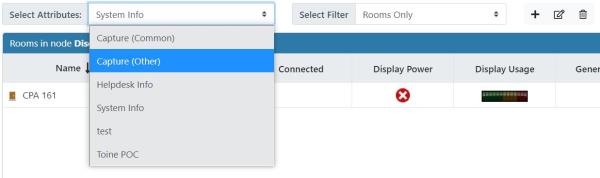
The Rooms tab displays room status. Selecting Attributes and designating Filters customizes the view:
|
|
The Schedule tab shows the calendar for the selected room. The Schedule tabs allows you to do the following:
|
|
The WebCam tab allows you to view a room via its webcam. |
|
The e-Control tab permits you to control a room remotely. |
|
The Instant Messaging tab lets you send messages to and receive messages from a selected room. |

|
The Capture tab allows you to monitor the status of the Capture devices and processes in your system. |

|
The + tab (Plus tab) permits you to add additional views, such as a security web portal. Each additional tab is assigned an URL; selecting the tab routes you to its corresponding URL. |