From the main toolbar chose the File menu.
Select the Import... option.
The Select
Files to Import dialog opens: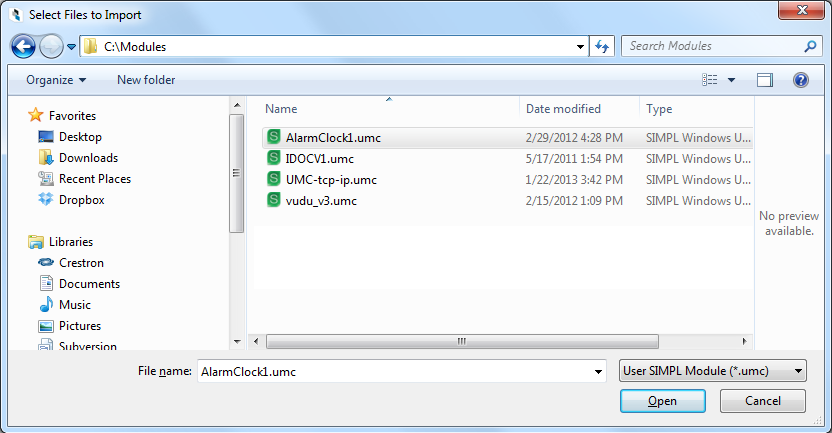
If desired change the extension
to  or
or  .
By default the extension is set to All
Importable Files.
.
By default the extension is set to All
Importable Files.
Navigate to the desired module to import, select it and click the Open button.
The File
Import Assistant dialog opens where you could specify the Import Location and Import
Action.
Choose Central for Import
Location if you wish to import the module to the “Central Crestron Studio® database”,
thus making the module available for use in any system. Alternatively,
specify Project if you are
importing the module to the current system/project only. Project modules
would not be available for use in any other systems/projects, except
the current one.
Note that when importing individual modules, the only available Import Location is Central
- signifying that the module will be available for use in any
system project.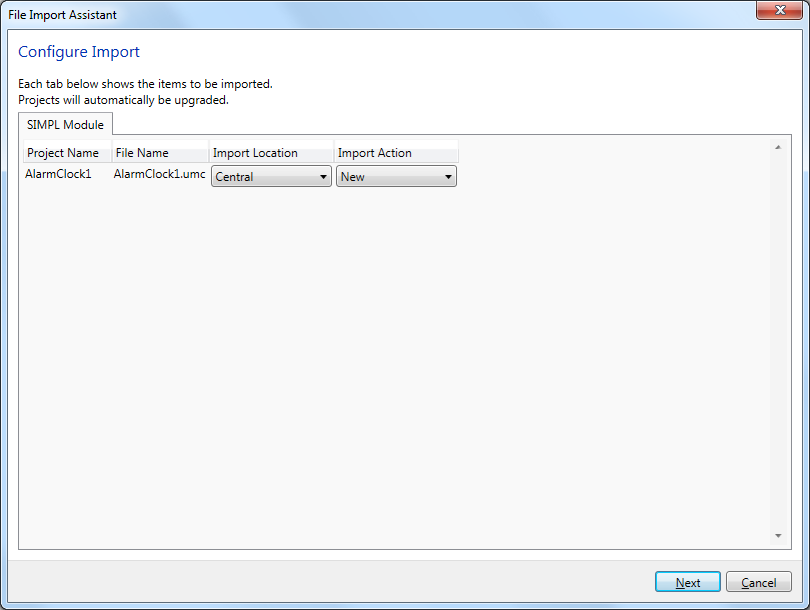
Press the Next button.