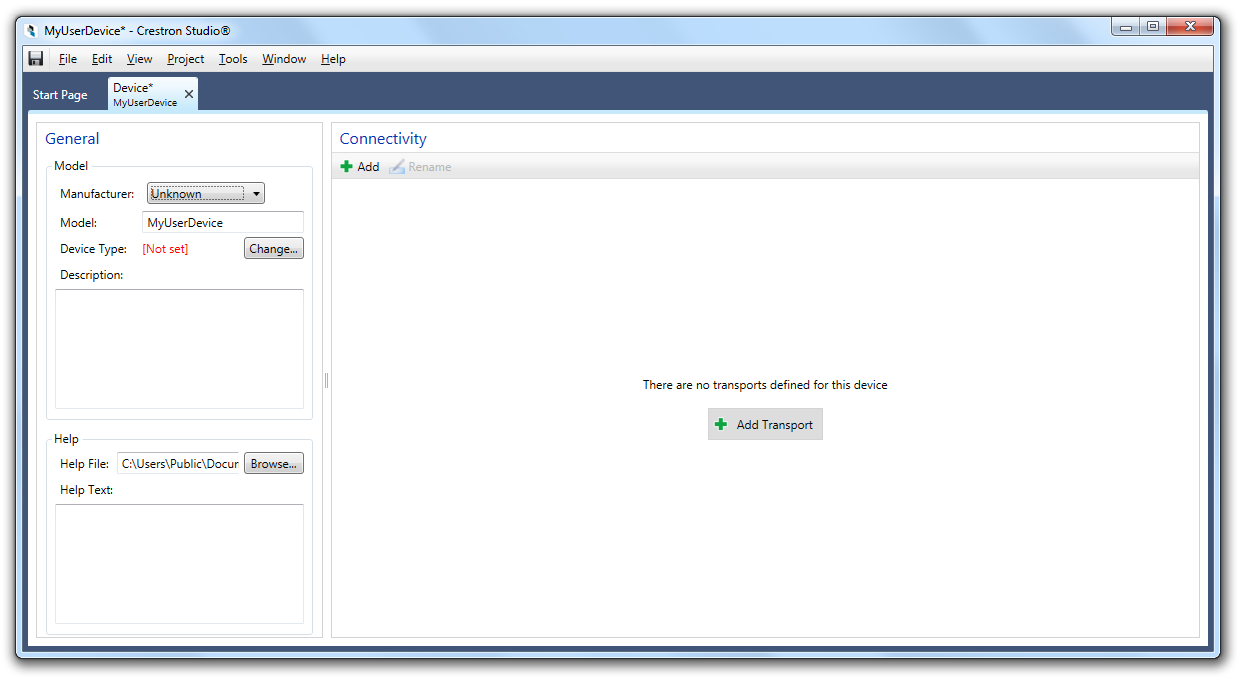
Any general properties of a user device can be modified by making changes to the fields in the General pane on the left hand side of the page:
Select the Device Manufacturer. This will add the device to the folder for the specified manufacturer in the Product Browser..
(optional) Type the model of the device. By default the Model field is pre-populated with the name of the device chosen in the New Project Dialog. Note that modifying the Model filed would not rename the user device.
Select the Device
Type.
The Device Type will be used to create and edit the definition
of a User Device that is displayed in the Product
Browser. The Type information will also be used to determine
what standard commands are available, for assignment to the Module
input and output properties of the device. The Subtype can be used
to help narrow down searches in the Product
Browser.
Crestron recommend to always accurately define both the type and subtype
to match what you plan to control when possible.
For example, If your device is going to be a basic AV Receiver, specify
the device type as 'Receiver->Surround Sound AV Receiver'. This
will automatically give it the standard AVR source routes model to
use in Source Routes (where you can customize the input configuration
if needed)
Note that there are a few cases where a specific Subtype have a different
behavior than other Subtypes in the same category.
For example, a device defined as a "Conferencing>>Codec"
will generate pages for a video conferencing unit, whereas "Conferencing>>Echo
Canceller" will not.
Another example: a device defined as a "CD>>Single CD"
will generate different pages than a "CD>>CD Changer."
(optional) Type a description for your device. The description you provide will be displayed in the Description column of the Product Browser.
Specify help file - To ensure that the device will
be useful and that you remember its functionality make sure to document
the device as completely as possible. Proper documentation will also
make it easier for others to use the device in their programs.
Help File: If you've generated
documentation for the device in PDF format, you can specify the name
of the PDF file to be used with the device. To locate the help file,
type the PDF filename in the text field, or click Browse. Default
folder - C:\Users\Public\Documents\Crestron\Tools\Devices\
Help Text: As an alternative
to a PDF file, you can also document the device by entering text in
the Help Text field.
When the device is selected in the Device
Library pressing the F1 key launches the help information specified
in the PDF help file or in the help text (help text is displayed in
a help viewer).
If you supply both PDF help file and help text, Crestron Studio®
will open the PDF help file.
Add device transport/connectivity. Note that once added to the device definition a transport CANNOT be deleted!