Tool Windows Layout
To save the current size and arrangement of your tool windows you can create custom Tool Windows Layout(s) for each Designer to which you can return at a later time.
Note that tool window layouts are Designer specific.
To create a custom tool windows layout:
-
Open the Designer in which you wish to work
-
Size and arrange the tool windows in any way you like
-
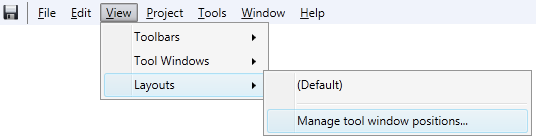
Point to View on the Crestron Studio®'s toolbar.
-
Select Layouts and then choose Manage tool window positions...:
-
In the Saved Tool Window Positions dialog type a name for the current tool window layout:
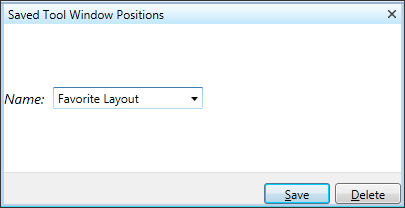
and press the Save button
To return to the saved tool windows layout:
-
Open the Designer in which you wish to work
-
Point to View on the Crestron Studio®'s toolbar.
-
Select Layouts and then choose the desired tool window layout from the list:
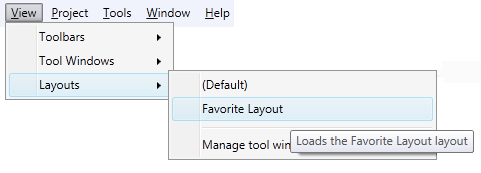
To return to the default tool windows layout:
-
Open the Designer in which you wish to work
-
Point to View on the Crestron Studio®'s toolbar.
-
Select Layouts and then choose (Default)