Dock/Float a Tool Window
To dock a tool window:
-
Click the title bar of the tool window you want to dock (when the tool window is in focus its title bar changes to light blue color)
-
Press and hold the mouse button while dragging the tool window toward the middle, left or right side of the Designer window.
-
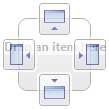
A guide diamond appears:
-
The sides of the diamond point toward the four sides of the Designer window. Additional four guiding icons  appear along the four edges of the screen.
-
When you reach the location where you want to dock your tool window:
-
- move the mouse pointer over the corresponding portion of the guide diamond (the chosen guide icon is shaded) and release the mouse button
-or-
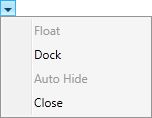
- Point to the down arrow on the right side of the tool window's title bar and choose Dock from the options:
If two or more tool windows are docked at the same guiding icon position they will appear "stacked".
Tool windows that share the left or right guiding icon will appear stacked side by side:
tool windows that share the top or bottom guiding icon appear stacked on top of each other:
To quickly re- dock a tool window to its previous docked location:
To undock a docked tool window do one of the following:
-
To undock a single tool window, point to the tool window tab and drag the tool window to the desired position.
-or-
-
Point to the tool window title bar and drag the tool window away from the edges of the application.
Note that this method undocks and moves all grouped tool windows (if any).