
The Build section of Build & Upload allows you to build and compile a complete system from all its parts: devices, touch screens and programming. In addition, compiled control system programs, touch screen projects, and other code can be uploaded to system devices.
The Build Browser lists the projects and their current build status. The Summary offers further information about the Status information; it lists available actions and any errors. For example, if the Status reads Cannot Build, then the Summary indicates why the build cannot be made such as A design has not been created yet.
To Build
Select the system's System Designer tab -or- select the system from the Start Page.
From the System Designer side bar, click on Build & Upload and then select Build. This displays the Build Browser. The Build Browser lists candidate builds for the selected system and their current status. The date and time of the Last Successful and Last Attempted build(s) are also listed, if any.
NOTE: Only builds with a Build Needed or an Up To Date Status can be built or re-built respectively. A build with a Cannot Build Status cannot be built; its Summary explains why it cannot be built such as A design has not been created yet or Keyset does not exist. The issue must be resolved before a build can be made.
Select the Build? check box of the appropriate build(s) -or- click on the Select All button, if applicable. When selected, the Status changes from Build Needed to Build and from Up to Date to Rebuild respectively.
Click
the Build button above the
Build Browser or press  :
:
You'll be asked to consent to saving your system before you can continue
with the Build process: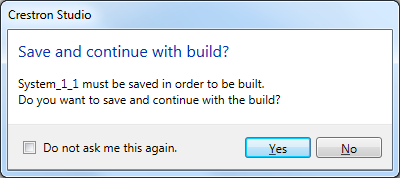
Press Yes to save the system and
continue with the build; press No
to cancel the build operation.
- OR -
Click
the Build and Upload button above
the Build Browser or press 

 :
:
NOTE:
Pressing  will cancel the Build.
The Build Browser's Status, Summary, Last Successful and Last Attempted columns are updated with the build results.
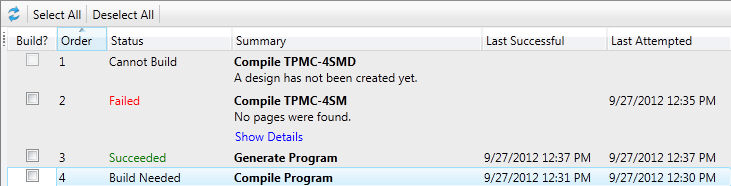
Click on the Show Details hyperlink to show the details of why the build Failed.
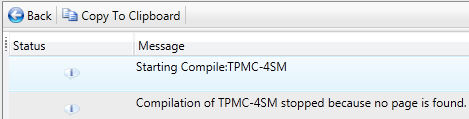
To create a printed record of the details for further troubleshooting, click on the Copy To Clipboard button to cut and paste the text into a text editor such as WordPad.
Open
the text editor or word processor, and then press  to paste the text.

Click the Back button to return to the Build Browser.