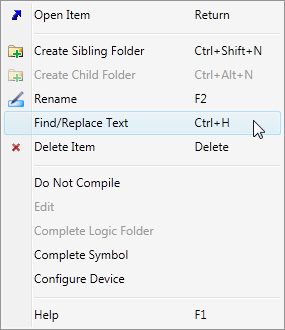
The Find/Replace right-click menu option in the Symbol Editor allows you to find a string in any of the signals on the symbol arguments, or only in the selected symbol arguments, and optionally in the symbol name or comments, and substitute different text.
The same menu option in Logic Explorer and Device Explorer will work on all symbols within a folder, or all devices that are children of the selected device.
Find/Replace dialog is initialized with the selected text, if any. IF there isn't selected text, and you execute the replace from an argument or a parameter, it's initialized from the value. If it's activated from anywhere else, it's initialized with the symbol name.
The 'Replace' value is remembered in the same Crestron Studio® session. It is also shared between the Find/Replace dialogs of the Symbol Editor as well as the Logic Explorer.
Note: This only saves the value for this session (i.e. until you restart the Crestron Studio® application.) When you first use this feature after a restart, the 'Replace' value is the same as the 'Find' value to make small edits easier.
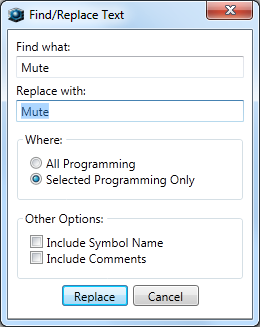
The Find/Replace dialog starts with the focus in the 'Replace with' field
Note that parameters with preset values are excluded from the find/replace dialog, so you have to manually change them. (This is so because what you see may not necessarily match what the actual value).
Find/Replace matches the string regardless of case. This applies to Find/Replace included in copy/paste a symbol as well as Find/Replace of signals in an existing device or logic symbol.
Find/Replace does not support wildcards.