
Most logic symbols have associated speed keys that can be used to add the symbol into a program quickly, without need to locate the symbol in the Symbol Library. The speed key of a symbol is a short abbreviation that is used to uniquely identify that symbol.
The Speed Key Entry box is located at the bottom part of the Logic Explorer tool window:
Select the Auto-Open Symbol icon  to the right of the Speed Key Entry box to automatically open the symbol in a Symbol Editor AND add it to the Logic Explorer. When not selected - symbols will be added to the Logic Explorer but will not be opened.
To start using Speed Keys:
Go to the Speed Keys entry box using one of the following methods:
If focus is within the Logic Explorer (for example, somewhere in the Logic Explorer tree), focus will automatically go to the Speed Key entry box, as soon as you start typing.
Manually click in the text box area at the bottom of the Logic Explorer
Press 


 when a valid key/phrase is entered). Click
  to add the symbol just to the Logic Explorer or to add the symbol to the Logic Explorer and to simultaneously open it in a Diagram/new Symbol Editor tab (Note that the focus will stay in the Logic Explorer).
Speed Key for each symbol are listed in the corresponding help topic for that symbol or could be found by hovering with your mouse over the symbol in the Symbol Library. The mouse over text includes the Speed Key for the symbol as shown below:
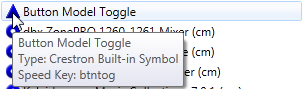
Please note that not all logic symbols have speed key names, however, the full name of a symbol is always valid as a speed key.
Speed Keys Phrases
In addition, special Speed Keys Phrases can be entered into the Speed Keys entry box to quickly create a sub-folder or a sibling folder in a selected node of the Logic Explorer or to add a custom-named symbol to your program.
The Speed Keys Phrases Syntax is described below:
sub:name,
where “name” is the name you wish to give the subfolder.
For example:
sib:Audio Equipment creates a subfolder in selected node, called Audio Equipment